 English
 العربية
 Deutsch
 Español
 Français
 Italiano
 Português
 Русский
 Türkçe
 Tiếng Việt
Free Online Image Cropper — Crop JPG, PNG, WebP Images with Aspect Ratios
Introduction
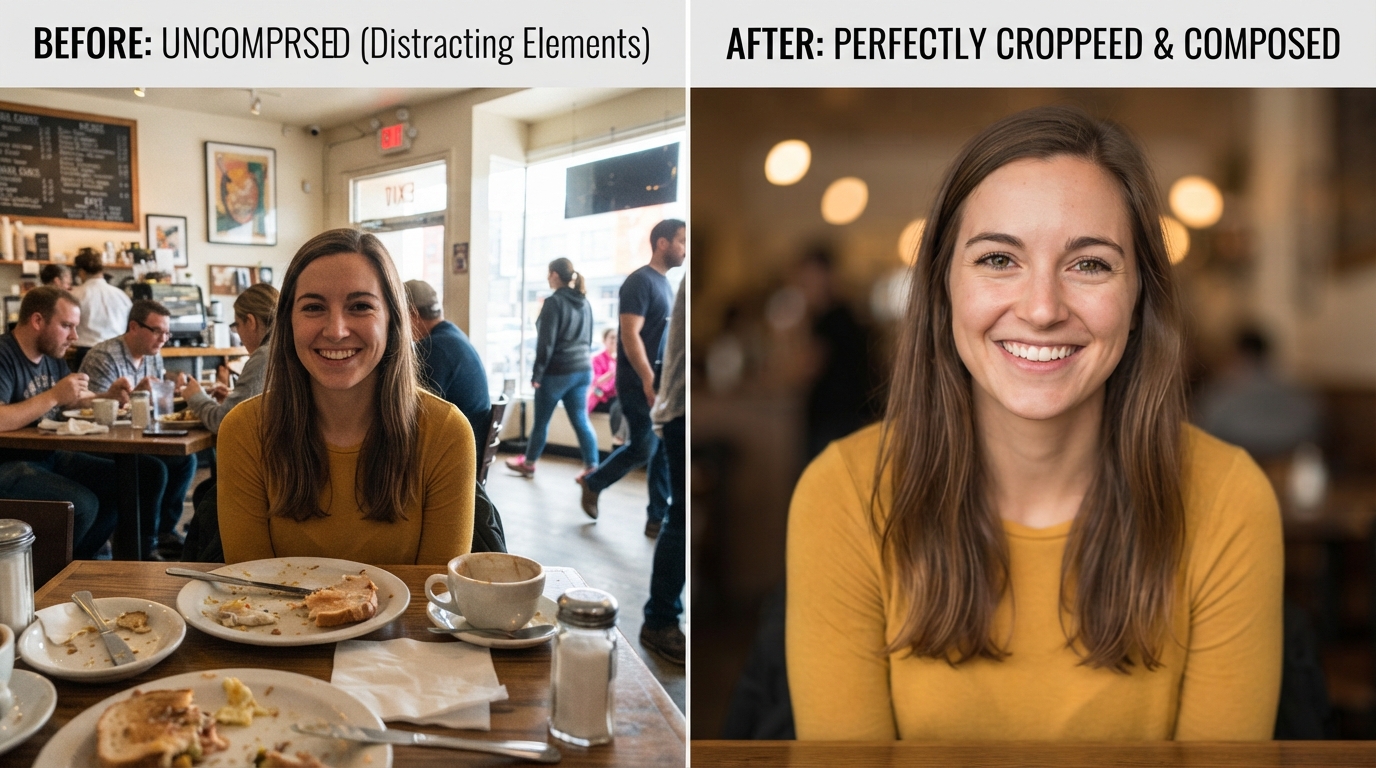
You have taken the perfect photo, but there is a stranger walking through the background on the left. Or you have a product image that needs to be exactly square for your online store. Or you need a 16:9 thumbnail for a YouTube video, but your source image is a vertical portrait shot. In every one of these situations, cropping is the solution — and it is the single most common image editing task on the planet.
But here is the catch: not everyone has Photoshop. Not everyone wants to install an app. And not every online tool gives you the precision and format control that a proper image cropping job demands.
The OKemall Image Cropper solves all of these problems in one browser tab. Upload an image by dragging and dropping, pasting a URL, or clicking to browse — then crop it to any of five aspect ratios (16:9, 4:3, 1:1, 2:3, or freeform) and download the result in seconds. No software, no signup, no watermark, no hassle.
In this guide, we will explore why intelligent cropping matters, how each aspect ratio serves a different purpose, and how to make the OKemall Image Cropper your first stop for every image that needs trimming.
Why Cropping Is the Most Underrated Photo Skill
Cropping is often treated as an afterthought — something you do to remove an unintended photobomb or fit an image into an awkward space. But in the hands of someone who understands composition and platform requirements, cropping is a creative superpower:
It fixes composition. The rule of thirds, leading lines, centered symmetry — these compositional techniques often require cropping to execute properly. A well-cropped image guides the viewer's eye exactly where you want it to go.
It removes distractions. Background clutter, edge-of-frame objects, unwanted people — cropping eliminates visual noise and keeps attention on the subject.
It adapts to platform requirements. YouTube thumbnails require 16:9. Instagram posts work best at 1:1 or 4:5. Twitter in-feed images are optimized at 16:9. Blog featured images usually work at 16:9 or 4:3. A single source photo may need to be cropped differently for each platform — and an online cropper makes this a one-minute task instead of a multi-app ordeal.
It creates visual consistency. An e-commerce store with product images in varying aspect ratios looks chaotic. Cropping all product photos to 1:1 creates a clean, professional grid that increases buyer confidence.
It improves load speed. Cropping away unnecessary parts of an image reduces file size, which improves page load times and SEO. Pairing the Image Cropper with the OKemall Image Compressor gives you an image that is both perfectly framed and optimally sized.
Understanding the Five Aspect Ratios
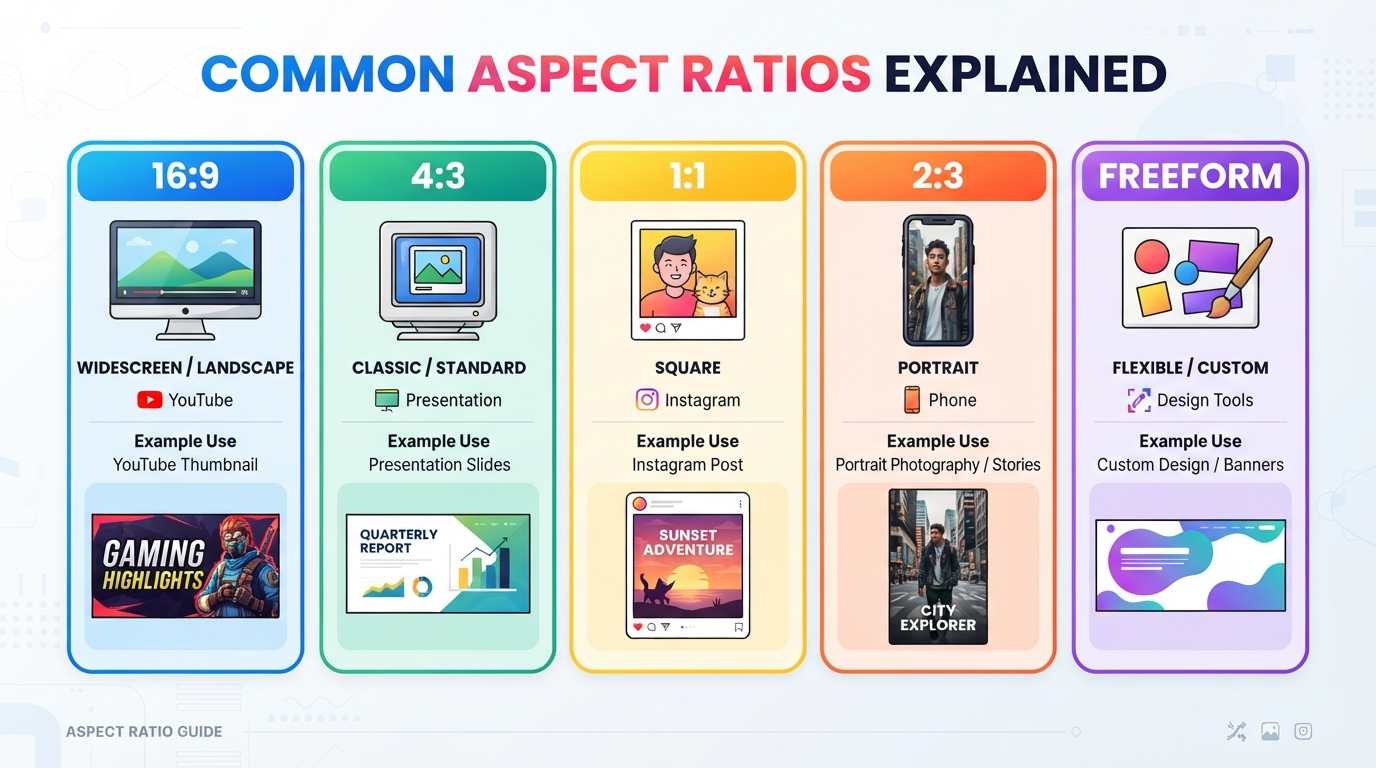
An aspect ratio is simply the proportional relationship between an image's width and height, expressed as width:height. The OKemall Image Cropper offers five options, each suited for different purposes:
1. 16:9 (Widescreen)
The most common widescreen ratio, used for HDTV, YouTube videos, presentation slides, and most modern laptop and monitor displays.
Best for: YouTube thumbnails, presentation slides (Google Slides, PowerPoint), blog featured images, Twitter/X in-feed images, Facebook link previews, and any content destined for widescreen displays.
Example crop: A 1920×1080 landscape shot cropped to exactly 16:9 will fill a YouTube thumbnail template perfectly without any stretching or letterboxing.
2. 4:3 (Standard)
The traditional television and monitor ratio, still common in photography (many DSLRs default to 4:3) and older presentation formats.
Best for: Printed photos (4×6 prints), some presentation formats, tablet-optimized images, and general-purpose photography where 16:9 feels too wide and 1:1 feels too constrained.
Example crop: A family portrait from a DSLR, cropped to 4:3, ready for printing or framing without cropping out important details.
3. 1:1 (Square)
The perfect square. Made iconic by Instagram's original format and still the most versatile aspect ratio for social media.
Best for: Instagram feed posts, e-commerce product photos (Amazon, Shopify, Etsy), profile pictures, app icons, and any grid-based layout where uniformity matters.
Example crop: A product shot cropped to 1:1 for a Shopify product listing, ensuring every item in the catalog has identical dimensions for a clean browsing experience.
4. 2:3 (Portrait)
The vertical counterpart to 3:2, this is a classic portrait orientation that matches many smartphone camera defaults and printed photo standards.
Best for: Portrait photography, Instagram Stories and Reels (9:16, which is 2:3's inverse), Pinterest pins, book covers, and mobile-first content.
Example crop: A vertical headshot cropped to 2:3, perfectly framed for a professional LinkedIn profile or an Instagram portrait post.
5. Freeform
No locked ratio — you drag the crop handles freely to any shape and size. This is the creative mode.
Best for: Removing specific elements from an image, custom compositions, cropping to non-standard dimensions for web design, and any situation where predefined ratios are too restrictive.
Example crop: Removing a distracting person from the edge of a group photo while keeping the aspect ratio flexible to preserve the remaining subjects.
How to Use the OKemall Image Cropper: Step-by-Step
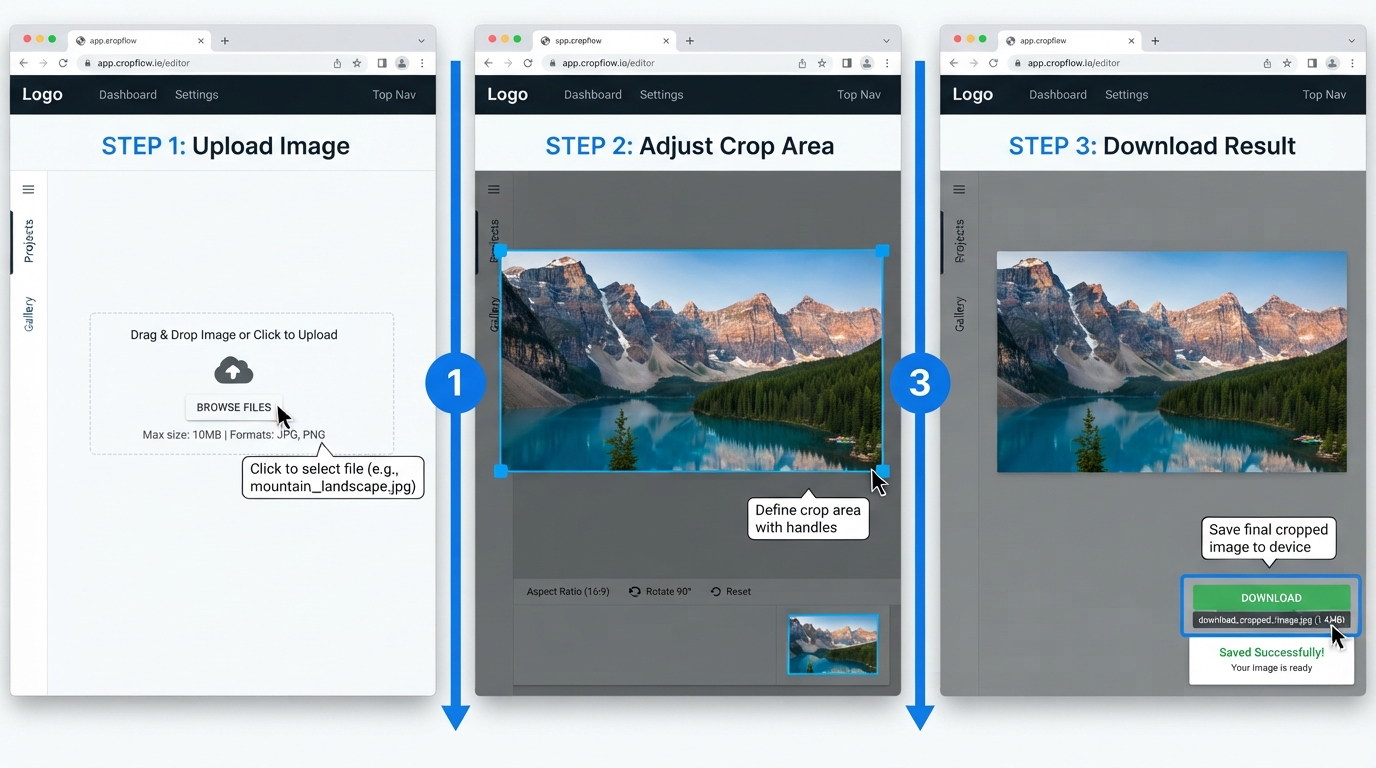
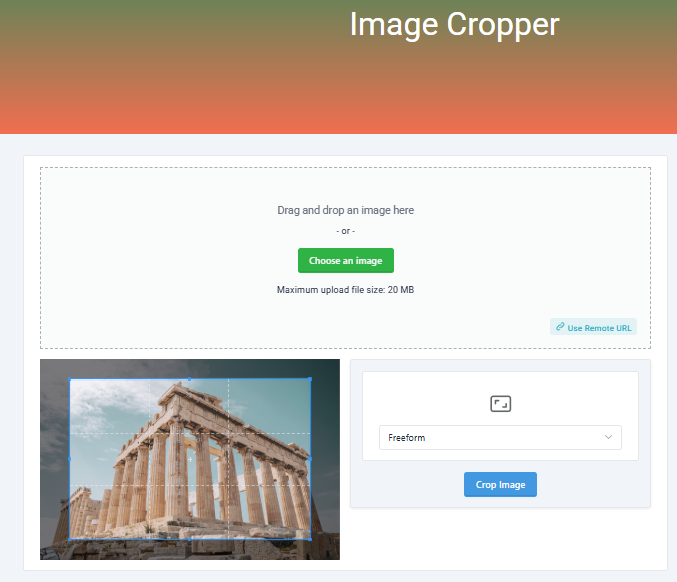
Step 1: Upload your image. You have three ways to get an image into the tool:
- Drag and drop — Drag any image file from your desktop or file explorer directly onto the upload zone. Dropzone.js handles the upload instantly.
- Click to browse — Click the "Choose an image" button and select a file from your device. Supported formats: JPG, PNG, WebP, GIF, BMP, and more. Maximum file size: 20 MB.
- Remote URL — Click the "Use Remote URL" badge in the bottom-right corner of the upload zone. Paste an image URL (or use the clipboard paste button), then click "Add." The tool fetches the image from the URL and loads it into the cropper.
Step 2: Select an aspect ratio. Use the dropdown menu to choose from 16:9, 4:3, 1:1 (Square), 2:3, or Freeform. The crop overlay on the preview image updates immediately to reflect your chosen ratio. If you select Freeform, you can drag the handles freely in any direction.
Step 3: Adjust the crop area. Click and drag the crop overlay to position it. Drag the corner handles to resize. Use the image behind the overlay as your guide — everything inside the crop box is what your final image will contain. The preview updates in real time, showing exactly what will be kept and what will be cut.
Step 4: Click "Crop Image." The teal Crop Image button at the bottom processes your crop. The tool generates the cropped image and opens a modal with a preview. Verify that the crop looks correct.
Step 5: Download. In the preview modal, click the green "Download Image" button. The cropped image downloads to your device with the original file name preserved — no generic "cropped_image.jpg" renaming.
Step 6 (optional): Switch back to local upload. If you are in remote URL mode and want to upload from your device instead, click the "Upload from device" badge to toggle back to the drag-and-drop interface.
What Makes OKemall's Image Cropper Stand Out
Three upload methods. Drag and drop, file browser, and remote URL — you can crop an image that is on your computer, in your cloud storage, or already published on the web without downloading it first.
Five aspect ratios, one dropdown. Unlike basic croppers that only offer freeform or square, the OKemall tool gives you four locked ratios (16:9, 4:3, 1:1, 2:3) plus freeform. No guessing whether your crop matches YouTube's thumbnail spec — select 16:9 and it is exact.
Original file type preserved. The cropped image downloads in its original format (JPG stays JPG, PNG stays PNG with transparency intact). No unexpected format conversion.
Full-resolution output. The tool crops from the original uploaded image at full resolution. You are not getting a downscaled preview — you get the actual pixels.
20 MB file size limit. Large enough for high-resolution photos from DSLRs and modern smartphones. Most online croppers cap at 5–10 MB.
No registration, no watermark. Upload, crop, download — done. No account creation, no branding watermarks on your output, no limits on how many images you crop.
Mobile-friendly. The responsive interface works on phones and tablets. Crop a photo directly from your phone's gallery while you are on the go — no need to transfer files to a computer first.
Common Cropping Scenarios and Which Ratio to Use
| Scenario | Recommended Ratio |
|---|---|
| YouTube video thumbnail | 16:9 |
| Google Slides / PowerPoint slide image | 16:9 |
| Instagram feed post | 1:1 (Square) |
| Instagram Story / Reel | 9:16 (crop to 2:3 first, then rotate if needed) |
| Pinterest pin | 2:3 |
| E-commerce product listing (Amazon, Shopify) | 1:1 (Square) |
| Blog featured image | 16:9 |
| LinkedIn profile picture | 1:1 (Square) |
| Facebook link preview image | 16:9 (minimum 1200×630) |
| Twitter/X in-feed image | 16:9 |
| Professional headshot | 2:3 or 4:3 |
| Printed photo (4×6) | 4:3 |
| App icon / favicon | 1:1 (Square) |
| Removing unwanted element from photo | Freeform |
| Email newsletter header | 16:9 or 4:3 |
Pro Tips for Better Image Cropping
1. Crop first, resize later. Always crop to the correct aspect ratio first, then resize to the platform's recommended pixel dimensions using the OKemall Image Resizer. This two-step workflow prevents stretching and distortion.
2. Use the rule of thirds. Mentally divide the crop area into a 3×3 grid. Position the subject at one of the four intersection points rather than dead center. This creates a more dynamic, professional-looking composition.
3. Leave room for overlays. When cropping for YouTube thumbnails or presentation slides, remember that text, logos, and UI elements may overlay your image. Crop slightly wider than needed and keep the subject away from areas where overlays will appear.
4. Check both previews before downloading. The OKemall cropper shows a preview modal after clicking "Crop Image." Take a moment to verify the crop before clicking download — it takes two seconds and prevents having to redo the process.
5. Keep the original uncropped. Before cropping, save a copy of the original uncropped image. Different platforms may require different aspect ratios from the same source photo, and starting from the original gives you maximum flexibility.
6. Crop for the platform, not the photo. A beautiful landscape composition might not work as a square Instagram post. Accept that some images need to be cropped aggressively to meet platform requirements, and prioritize the platform's needs over preserving every pixel of the original.
Related OKemall Image Tools
The Image Cropper fits into a complete image editing workflow on OKemall:
- Image Resizer — Resize cropped images to exact pixel dimensions for specific platforms.
- Image Compressor — Compress cropped images for faster web loading without visible quality loss.
- Rotate Image — Rotate images that are in the wrong orientation before cropping.
- Flip Image — Mirror images horizontally or vertically.
- Image Converter — Convert cropped images between JPG, PNG, WebP, and other formats.
- Image to Base64 — Encode cropped images to Base64 for inline CSS and HTML embedding.
- Image to Text — Extract text from images using OCR.
Frequently Asked Questions
Q: Is the OKemall Image Cropper free? Yes, completely free. No signup, no watermark, no usage limits.
Q: What image formats are supported? The tool accepts all common image formats: JPG, JPEG, PNG, WebP, GIF, BMP, and ICO. The cropped output preserves the original format.
Q: What is the maximum file size? 20 MB per image, which accommodates high-resolution photos from most DSLRs and smartphones.
Q: Does the cropper reduce image quality? No. The cropper extracts the selected region from the original image at full resolution. There is no compression or quality loss applied during cropping — you get exactly the pixels you selected.
Q: Can I crop images from a URL instead of uploading? Yes. Click "Use Remote URL" to toggle to URL mode, paste the image URL, and click Add. The tool fetches the image and loads it into the cropper.
Q: What is the difference between Freeform and the other ratios? Freeform lets you drag the crop handles to any shape and size with no locked proportions. The other ratios (16:9, 4:3, 1:1, 2:3) lock the width-to-height relationship, so resizing one dimension automatically adjusts the other to maintain the ratio.
Q: Does the tool work on mobile? Yes, the interface is fully responsive and works on smartphones and tablets. You can upload photos from your phone's gallery and crop them directly.
Q: Can I crop multiple images at once? The tool processes one image at a time. For batch processing, work through your images sequentially — the workflow is fast enough that individual processing is rarely a bottleneck.
Image cropping is one of those tasks that everyone needs to do, but few people want to install software for. It is too simple to justify opening Photoshop, too important to do sloppily, and too frequent to rely on whatever limited cropping feature your phone's gallery app offers.
The OKemall Image Cropper hits the sweet spot: powerful enough for professional use (five aspect ratios, full-resolution output, multi-format support, remote URL fetching), simple enough for anyone to use in seconds (drag-and-drop upload, visual crop overlay, one-click download). There is no installer, no account, no watermark, and no learning curve.
Whether you are a content creator preparing YouTube thumbnails, an online seller standardizing product photos, a social media manager adapting images for multiple platforms, or just someone who wants to remove a photobomber from an otherwise perfect shot — bookmark this tool. It does one thing, and it does it exactly right.
Stop settling for awkward framing. Try the OKemall Image Cropper now — free, full-resolution, and ready when you are.

Popular Tools
Recent Posts