 English
 العربية
 Deutsch
 Español
 Français
 Italiano
 Português
 Русский
 Türkçe
 Tiếng Việt
Free Online Image Converter — Convert JPG, PNG, WebP, GIF, BMP Instantly
OKemall Image Converter — The Complete Guide to Converting Images Online
Introduction
You have a PNG logo that needs to be a JPG for a form submission. You have a massive JPG photo that should be a WebP for better website performance. You have a favicon that arrived as a PNG but your site template demands an ICO file. In every one of these situations, the solution is the same: you need an image converter.
But the path to conversion is not always straightforward. Some converters require software installation. Some upload your images to remote servers without clear privacy policies. Some only support one or two formats. Some leave watermarks on your output.
The OKemall Image Converter eliminates all of these friction points. It converts images between five major formats — JPG, PNG, WebP, GIF, and BMP — directly in your browser, using client-side processing that keeps your files completely private. Upload by dragging and dropping, browsing your device, or pasting a remote URL. Select your output format, click Convert, and download — all in under a minute, with no signup and no watermark.
In this guide, we will explore every supported format, explain when to convert from one to another, walk through the complete workflow, and show you how the Image Converter fits into a complete image editing toolkit on OKemall.
Why Image Format Conversion Matters
Image formats are not interchangeable — each one serves a different purpose, and choosing the wrong format has real consequences:
Performance impact. A PNG photograph on a website can be 5–10 times larger than the same image as a JPG or WebP. Google's Core Web Vitals penalize slow-loading pages, and oversized images are the number one cause of poor page speed scores. Converting to the right format before uploading can be the difference between a green score and a red one.
Compatibility requirements. Many online forms, government portals, job applications, and legacy systems specify exact file formats. "Submit a JPG under 2 MB" or "Upload a BMP file" are instructions that cannot be negotiated — you either provide the right format or the system rejects your file.
Transparency handling. PNG supports transparent backgrounds; JPG does not. Converting a transparent PNG to JPG replaces the transparency with a solid white background — which might be exactly what you want for a profile picture submission, or exactly what you do not want for a logo overlay. Understanding the difference is essential.
File size management. An email attachment limit of 25 MB might reject your high-res PNG but accept the same image as a JPG at one-fifth the size. Image conversion solves file size problems without requiring you to physically resize or re-crop the image.
Modern web standards. WebP offers 25–34% smaller file sizes than comparable JPG and PNG images at equivalent quality. Major browsers (Chrome, Firefox, Edge, Opera) all support WebP. If your site is not serving WebP images, you are leaving performance gains on the table — and an online converter makes the switch effortless.
The Five Output Formats Explained
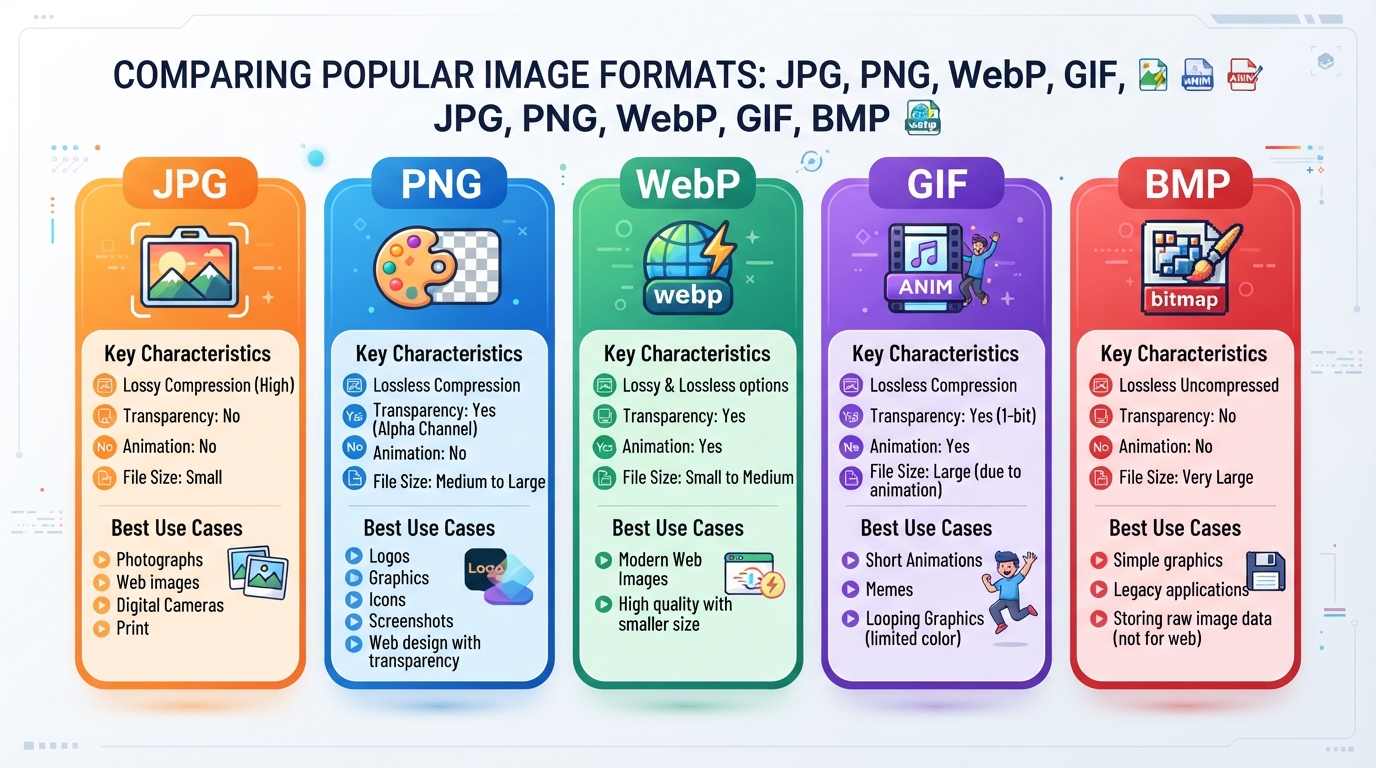
The OKemall Image Converter supports five output formats, each with specific characteristics:
JPG (JPEG)
Type: Lossy compression Best for: Photographs, complex images with many colors and gradients, email attachments, web content Not good for: Images requiring transparency, text-heavy graphics, logos with sharp edges, images needing repeated editing File size: Small to medium
JPG uses lossy compression — it discards some image data to reduce file size. At high quality settings (80–100%), the loss is imperceptible to the human eye while file sizes drop dramatically. At very low quality settings, compression artifacts (blocky patterns) become visible. JPG does not support transparency.
PNG
Type: Lossless compression Best for: Logos, icons, screenshots, text-heavy graphics, images with transparent backgrounds, images that will be edited repeatedly Not good for: Large photographs destined for the web (file size is typically 3–5× larger than JPG) File size: Medium to large
PNG preserves every pixel exactly — no quality is lost during compression. It supports full alpha-channel transparency, making it the only choice for logos and icons that need to sit on colored or photographic backgrounds.
WebP
Type: Both lossy and lossless (lossy by default in most converters) Best for: Modern websites, any context where you would use JPG or PNG but want smaller file sizes Not good for: Legacy systems that do not support WebP, Apple Mail (which does not display WebP natively) File size: 25–34% smaller than equivalent JPG/PNG
WebP is Google's modern image format that delivers superior compression. A WebP conversion is the single most impactful thing you can do for website image performance. All major browsers support it as of 2024.
GIF
Type: Lossless (but limited to 256 colors) Best for: Simple animations, very small graphics with limited color palettes Not good for: Photographs (256-color limit causes visible banding), large graphics File size: Small for simple graphics, large for complex ones
GIF is an aging format with a severe limitation — it only supports 256 colors. For animated content, GIF still dominates despite newer alternatives like APNG and animated WebP. For static images, there is almost always a better format.
BMP
Type: Uncompressed Best for: Legacy Windows applications, very specific industrial or embedded system requirements Not good for: Web use, email, any context where file size matters File size: Very large (uncompressed)
BMP is an uncompressed raster format — every pixel is stored as raw data with no compression. File sizes are enormous compared to any other format. BMP conversion is typically only needed for specific legacy software requirements.
When to Convert to Which Format
| Your Situation | Convert From | Convert To | Why |
|---|---|---|---|
| Photograph for a website | PNG | JPG or WebP | Dramatic file size reduction, imperceptible quality loss |
| Photograph for a government form | PNG or WebP | JPG | JPG is universally accepted by form submission portals |
| Logo with transparent background for a website | JPG | PNG | JPG cannot hold transparency; PNG preserves it |
| Blog post images for better PageSpeed | JPG or PNG | WebP | 25–34% smaller, supported by all modern browsers |
| Image for email attachment | PNG | JPG | Smaller file size avoids attachment limits |
| Screenshot for documentation | JPG | PNG | PNG preserves text clarity without compression artifacts |
| Favicon from a logo | PNG or JPG | ICO | ICO is the standard favicon format (use the dedicated ICO converter) |
| File for legacy Windows software | JPG or PNG | BMP | Some older Windows programs only accept BMP |
| Simple animated graphic | PNG (static) | GIF | GIF is the most universally supported animation format |
| Recovering quality after editing | JPG | PNG | PNG is lossless — no additional quality degradation with each save |
How to Use the OKemall Image Converter: Step-by-Step
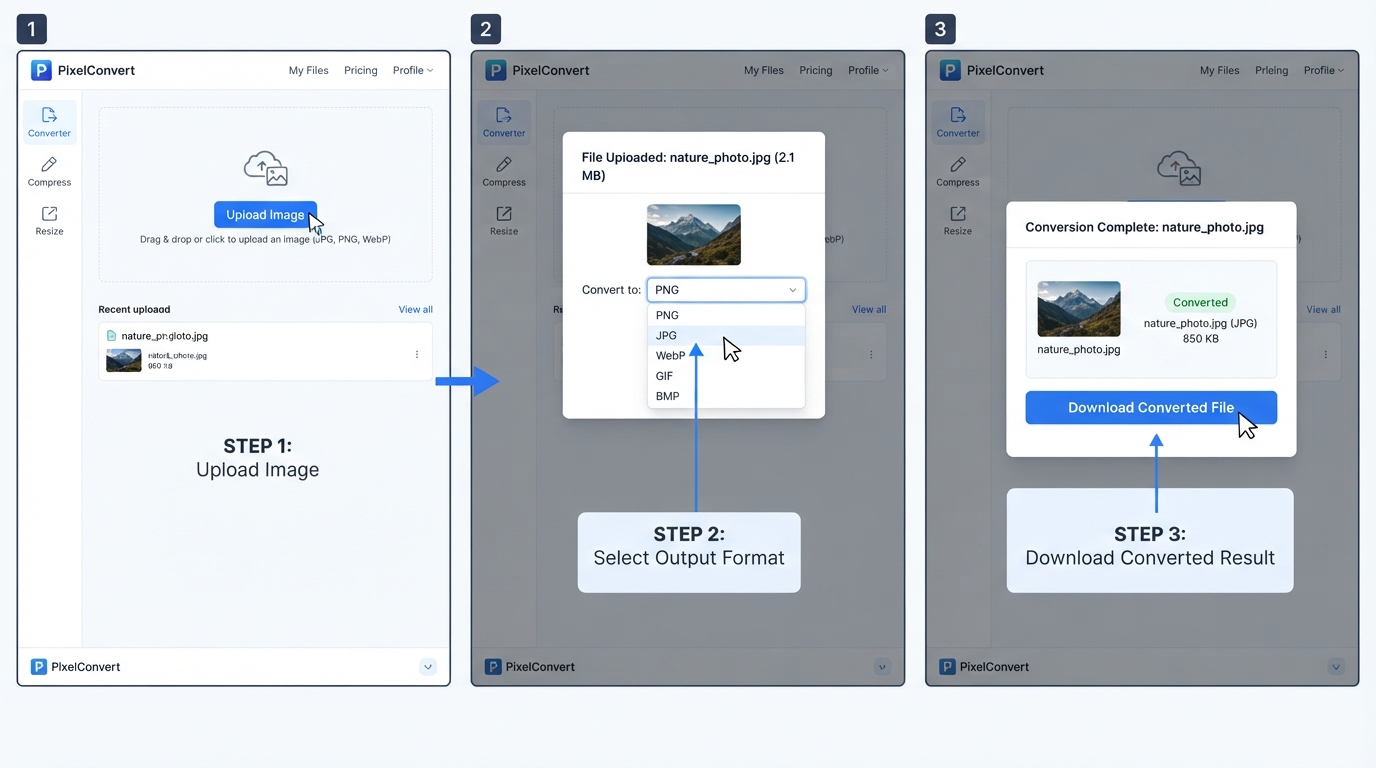
Step 1: Upload your image. You have three ways:
- Drag and drop — Drag any image from your desktop or file explorer onto the upload zone. Dropzone.js handles it instantly.
- Click to browse — Click the "Choose an image" button and select a file. Supported input formats include JPG, PNG, WebP, GIF, BMP, and ICO. Maximum file size: 20 MB.
- Remote URL — Click the "Use Remote URL" badge in the bottom-right corner of the upload zone. Paste the image URL (or use the clipboard paste button), then click Add.
Step 2: Preview your image. The uploaded image appears immediately in the preview panel on the left. Verify that the correct file loaded — the preview shows exactly what the tool will work with.
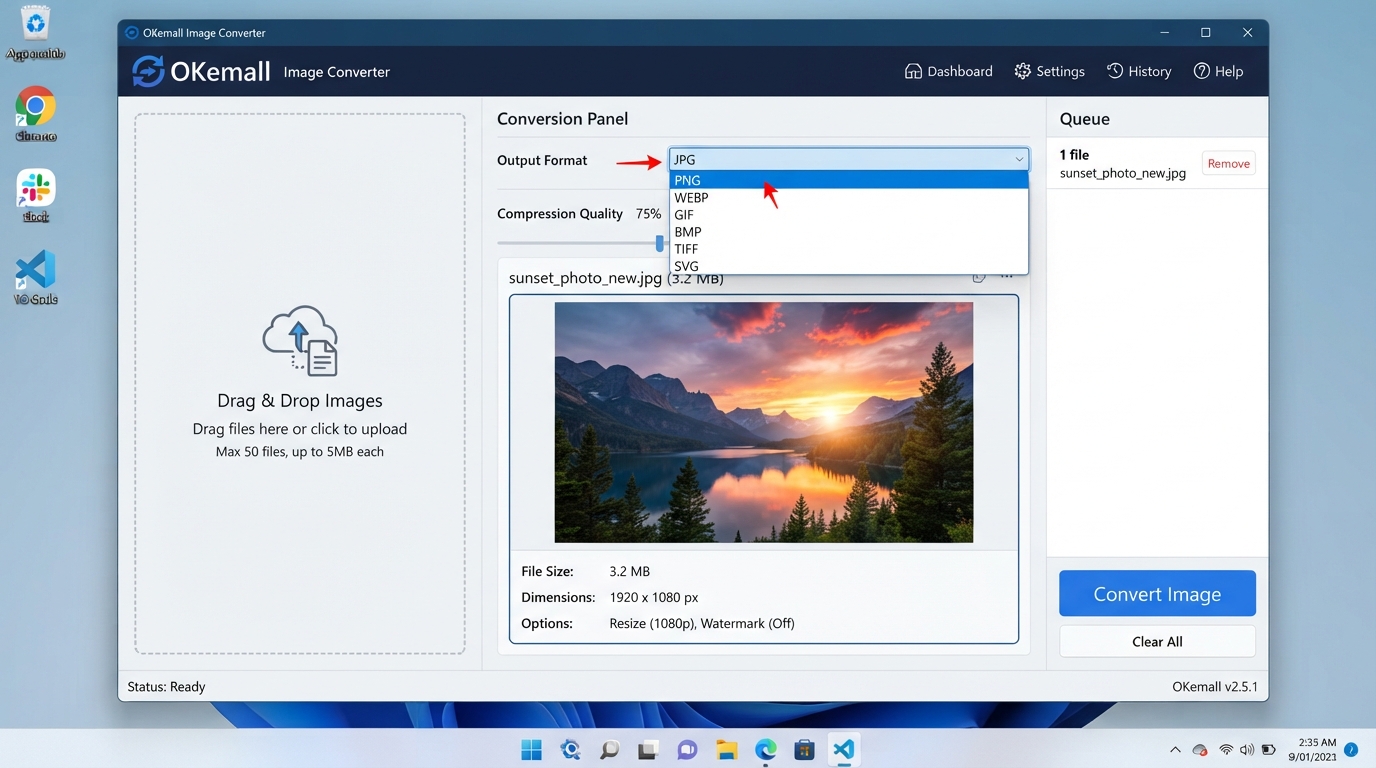
Step 3: Select the output format. Use the "Select new format" dropdown on the right to choose your target format: JPG, PNG, GIF, BMP, or WebP.
Step 4: Click "Convert Image." Press the teal Convert Image button. The tool processes the conversion using client-side technology — your image never leaves your browser. A preview modal opens showing the converted result.
Step 5: Download. In the preview modal, verify the converted image looks correct, then click the green "Download Image" button. The file downloads to your device in the new format.
Step 6 (optional): Toggle back to local upload from remote URL mode by clicking the "Upload from device" badge.
What Makes OKemall's Image Converter Stand Out
Five output formats in one tool. JPG, PNG, WebP, GIF, and BMP — the five most commonly needed image formats, selectable from a single dropdown. No need to visit different converters for different format pairs.
Client-side processing for privacy. The conversion happens in your browser, not on a remote server. Your images are never uploaded to OKemall's servers, never stored, and never visible to anyone but you.
Three upload methods. Drag and drop, file browser, and remote URL — you can convert an image from your computer, cloud storage, or a publicly hosted URL without downloading it first.
20 MB file size limit. Large enough for high-resolution photos from DSLRs and smartphones.
No registration, no watermark. Open the page, convert your image, download. No account, no branding on your output, no restrictions.
16 dedicated one-click sub-converters. The OKemall platform also offers individual converters for specific format pairs (JPG to PNG, PNG to WebP, WebP to JPG, etc.) that skip the format selection step entirely — faster when you know exactly what you need.
Mobile-friendly. The responsive interface works on phones and tablets. Convert an image directly from your phone's gallery without transferring files to a computer.
Multi-language support. Available in 10 languages.
The Complete OKemall Image Tool Ecosystem
The Image Converter is the centerpiece of a larger image tool suite on OKemall. Here is how the tools work together:
Before conversion: Use the Image Cropper to trim unwanted areas, the Rotate Image tool to fix orientation, or the Flip Image tool to mirror horizontally or vertically.
During conversion: The Image Converter changes the format. For specific format pairs, use the dedicated one-click converters: JPG to PNG, PNG to JPG, JPG to WebP, WebP to JPG, PNG to WebP, WebP to PNG, and others.
After conversion: Compress the output with the Image Compressor for even smaller file sizes, resize to exact pixel dimensions with the Image Resizer, encode to Base64 with Image to Base64 for inline embedding, or extract text with Image to Text OCR.
Important Limitations to Understand
PNG to JPG is lossy. Once you convert a PNG to JPG and discard the original, the lost image data (subtle gradients, transparency) cannot be recovered. Always keep your original PNG file.
No RAW format support. The tool handles standard web and print formats (JPG, PNG, WebP, GIF, BMP, ICO) but does not support specialized camera RAW files (.CR2, .NEF, .ARW) or vector formats (.SVG, .EPS).
Large file performance. Files approach the 20 MB limit may be slow to process on older devices with limited RAM, as the conversion happens client-side in your browser.
GIF's 256-color limit. Converting a full-color photograph to GIF produces visible color banding. GIF conversion is only recommended for simple graphics with limited color palettes or for creating animations.
Pro Tips for Image Conversion
1. Always keep the original. Before converting, save a backup of your original file. Some conversions are lossy and irreversible. Having the original means you can always start fresh.
2. Convert to WebP for web performance. If you manage a website, converting existing JPGs and PNGs to WebP is the single highest-impact change you can make for image load times. Use the JPG to WebP or PNG to WebP dedicated converters for batch-style processing.
3. Check transparency before converting PNG to JPG. If your PNG has a transparent background and you convert to JPG, those transparent areas become solid white. Open your PNG in the preview panel and look carefully before selecting JPG as the output.
4. Use the right tool for the right job. For a one-off conversion where you are not sure which format you need, the general Image Converter with its format dropdown is perfect. If you know exactly what you need (e.g., "I need every image as WebP today"), the dedicated one-click converters are faster.
5. Combine with compression for best results. Convert your image to the right format, then run it through the Image Compressor to reduce file size further. Format selection plus compression is the professional workflow for web-ready images.
6. Verify the download before deleting the original. The preview modal shows the converted image, but always open the downloaded file and confirm it looks correct before you discard the source file. Browser rendering in the preview can sometimes differ slightly from the saved file.

Frequently Asked Questions
Q: Is the OKemall Image Converter free? Yes, completely free. No signup, no watermark, no usage limits.
Q: Are my images uploaded to a server? No. The conversion happens client-side — in your browser. Your images are never uploaded to OKemall's servers, ensuring complete privacy.
Q: What is the maximum file size? 20 MB per image. For files larger than 20 MB, use the Image Compressor first to reduce the size, then convert.
Q: Does conversion reduce image quality? It depends on the conversion. JPG output is lossy (some quality loss). PNG output is lossless (no quality loss). WebP output can be either depending on the tool settings. Always keep your original file.
Q: Can I convert transparent PNGs to JPG? Yes, but the transparency will be replaced with a solid white background. If you need transparency, convert to PNG or WebP instead.
Q: Does the tool support animated GIFs? The tool handles animated GIFs as input but converts them to a single static frame in the output format. For dedicated animation conversion, specialized software is recommended.
Q: Does the tool work on mobile? Yes, the interface is fully responsive and works on smartphones and tablets.
Image format conversion is one of the most common — and most overlooked — tasks in digital content creation. Choosing the right format affects website speed, email deliverability, form submission success, and overall image quality. Doing it wrong means oversized files, rejected uploads, or lost transparency. Doing it right takes seconds.
The OKemall Image Converter makes it impossible to do it wrong. Three upload methods, five output formats, client-side processing for complete privacy, and a preview-and-download workflow that takes under a minute. Whether you are preparing images for a website, submitting files to a form, optimizing for email, or converting favicons and legacy formats — this is the tool that handles it.
Bookmark it alongside the Image Cropper, Image Compressor, and Image Resizer, and you have a complete browser-based image editing toolkit that replaces the need for desktop software for 90% of common tasks.
Formats should never stand between you and a finished project. Try the OKemall Image Converter now — free, private, and ready when you are.

Popular Tools
Recent Posts