PowerPoint to PDF: Convert PPT & PPTX to PDF Online
Convert PPT and PPTX Files to PDF Online
PowerPoint presentations are designed for presenting information on a screen. PDF files are designed for sharing, reading, printing, archiving, and maintaining a consistent document layout.
That difference becomes important when you need to send a presentation to someone who may not have Microsoft PowerPoint installed, print slides for a meeting, submit an assignment, upload a document to a website, or share a presentation without allowing the recipient to edit the original slides.
A PowerPoint to PDF converter solves this problem by transforming a PowerPoint presentation into a PDF document while preserving the structure of the slides as closely as possible.
The conversion is useful for students, teachers, business professionals, designers, project managers, consultants, and anyone who regularly works with presentation files.
With an online PowerPoint to PDF tool, you can convert a presentation without manually rebuilding the document or installing specialized desktop software.
Real-World Takeaway: PowerPoint is ideal when you need to edit and present slides. PDF is often the better format when your priority is sharing, printing, submitting, or preserving a finished presentation.
What Is a PowerPoint to PDF Converter?
A PowerPoint to PDF converter is a tool that converts presentation files into PDF documents.
PowerPoint presentations are commonly saved in formats such as:
-
.ppt -
.pptx
PDF files use the:
-
.pdf
extension.
The conversion changes the presentation into a portable document format that can be opened on many devices and operating systems.
A typical presentation might contain:
-
Text
-
Images
-
Charts
-
Tables
-
Shapes
-
Diagrams
-
Backgrounds
-
Slide layouts
-
Graphical elements
After conversion, those slides become pages within a PDF document.
For example, a presentation containing 15 slides will generally produce a PDF containing 15 corresponding pages when converted using the standard full-slide layout.
Why Convert PowerPoint to PDF?
There are several practical reasons to convert a presentation.
Easier sharing
A PDF can be opened on most modern computers, phones, and tablets without requiring the recipient to have PowerPoint installed.
Consistent appearance
PowerPoint presentations can look different across devices because of fonts, software versions, themes, screen settings, or missing resources.
PDF is designed to preserve the document's layout and appearance across compatible PDF viewers.
Better for printing
PDF is widely used for printing because it provides a fixed page layout.
Smaller workflow
If someone only needs to read a presentation, sending a PDF can be simpler than sending an editable PowerPoint file.
Easier submission
Schools, universities, companies, clients, and online platforms may request PDF documents for assignments, reports, proposals, and other submissions.
Reduced editing
A PDF is not necessarily impossible to edit, but it is generally less convenient to edit as a presentation than the original PowerPoint file.
This makes PDF useful when you want to distribute a finished version rather than the editable source.
PowerPoint vs PDF: What's the Difference?
PowerPoint and PDF serve different purposes.
| Feature | PowerPoint | |
|---|---|---|
| Primary purpose | Creating presentations | Sharing fixed documents |
| Easy to edit | Yes | Less convenient |
| Presentation mode | Excellent | Limited |
| Fixed layout | Depends on environment | Designed for consistency |
| Printing | Good | Excellent |
| Collaboration | Strong with appropriate tools | Mostly document-based |
| File extension | PPT/PPTX | |
| Best for | Editing and presenting | Sharing and distributing |
Neither format is universally better.
The right choice depends on what you need to do with the document.
What Is the Difference Between PPT and PPTX?
PowerPoint presentations commonly use two file extensions: PPT and PPTX.
PPT
.ppt is the older PowerPoint presentation format associated with earlier versions of Microsoft PowerPoint.
PPTX
.pptx is the newer Office Open XML presentation format introduced with modern versions of Microsoft Office.
Most modern PowerPoint presentations use PPTX.
When using a converter, always check which file types the particular tool supports before uploading a presentation.
How to Convert PowerPoint to PDF Online
The conversion process is usually straightforward.
Step 1: Prepare your PowerPoint file
Make sure your presentation is saved as a supported PowerPoint file.
Check the presentation before converting it.
Look for:
-
Missing images
-
Incorrect fonts
-
Overlapping text
-
Broken charts
-
Unfinished slides
-
Unwanted notes
-
Hidden slides
Step 2: Open the PowerPoint to PDF tool
Open the online PowerPoint to PDF converter you want to use.
Step 3: Upload your presentation
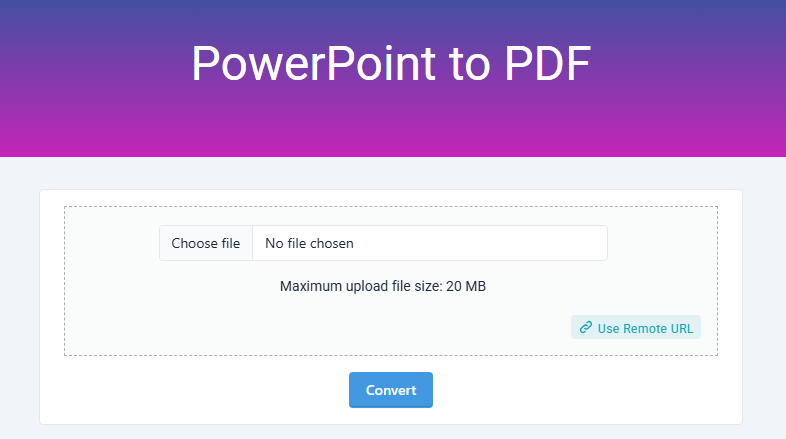
Select your PPT or PPTX file and upload it to the converter.
Step 4: Start the conversion
Choose the conversion option provided by the tool.
The converter processes the presentation and creates a PDF version.
Step 5: Check the converted document
Open the PDF after conversion.
Review important elements such as:
-
Text
-
Images
-
Slide order
-
Tables
-
Charts
-
Page orientation
-
Fonts
-
Spacing
Step 6: Save or share the PDF
Once you are satisfied with the result, the PDF can be used for sharing, printing, submission, or archiving.
Real-World Takeaway: Always review a converted presentation before sending it to a client, teacher, manager, or customer. A quick visual check can catch formatting problems before they become embarrassing.
Why Online PowerPoint to PDF Conversion Is Useful
Traditional desktop software can convert PowerPoint files to PDF, but online conversion can be convenient when you are working on a computer that does not have Microsoft Office installed.
An online converter can be useful when:
-
You are using a shared computer.
-
You are working from a browser.
-
You do not have PowerPoint installed.
-
You need a quick one-time conversion.
-
You are working from a device with limited software.
-
You want a simple conversion workflow.
For frequent professional work, desktop applications may still provide more control over advanced conversion settings.
PowerPoint to PDF for Students
Students frequently work with presentations for:
-
Assignments
-
Class presentations
-
Research projects
-
Group projects
-
Seminar presentations
-
Thesis presentations
-
Project submissions
A teacher or institution may ask for a PDF copy because it is easier to open, review, print, or archive.
For example, a student may create a presentation in PowerPoint and then convert it to PDF before submitting the final version.
This can also make the submission easier to view on devices that do not have PowerPoint installed.
PowerPoint to PDF for Business
Businesses use presentations for:
-
Sales proposals
-
Company profiles
-
Marketing presentations
-
Training materials
-
Financial reports
-
Project updates
-
Client presentations
-
Business plans
-
Internal documentation
The editable PowerPoint file may be appropriate when colleagues need to make changes.
A PDF may be more appropriate when the presentation is being distributed as a finished document.
For example, a sales team might create a proposal in PowerPoint and send the final PDF to a client.
PowerPoint to PDF for Presentations and Handouts
Presentations are not always viewed on a projector or computer.
A speaker may want to provide a printed handout to attendees.
Converting the presentation to PDF makes it easier to distribute the slides as a document.
Depending on the PDF creation method, the final document can then be printed or shared electronically.
PowerPoint to PDF for Email Attachments
PDF is widely used for document sharing through email.
Suppose you create a 20-slide company presentation for a client.
Sending the original PowerPoint file may allow the recipient to modify the presentation unintentionally or encounter compatibility issues.
A PDF provides a more controlled version for reading and review.
Before sending the document, however, check its file size and remove unnecessary elements if the attachment is too large.
PowerPoint to PDF for Printing
PDF is particularly useful when a presentation needs to be printed.
A PowerPoint presentation can contain animations and interactive elements that have no meaning on printed pages.
The PDF captures the presentation as static pages.
Before printing, check:
-
Page size
-
Orientation
-
Margins
-
Slide scaling
-
Text size
-
Image quality
-
Background colors
If the document is intended for professional printing, additional PDF settings may be necessary.
Does Converting PowerPoint to PDF Reduce Quality?
The answer depends on how the conversion is performed.
A good conversion process can preserve the original slide layout and maintain high-quality text and graphics.
However, images inside the PowerPoint presentation may already have been compressed before conversion.
There are also situations where conversion settings can affect image quality.
For example:
Original presentation image → compressed PowerPoint image → PDF
If the source image is already low quality, converting it to PDF cannot magically restore missing detail.
For important presentations, use high-quality source images and inspect the final PDF before distribution.
What Happens to PowerPoint Animations?
This is an important difference between PowerPoint and PDF.
PowerPoint supports:
-
Animations
-
Slide transitions
-
Embedded media
-
Interactive elements
-
Presenter features
A standard PDF is essentially a static document.
When a presentation is converted to PDF, slide animations and transitions generally do not remain interactive in the same way they work in PowerPoint.
For example, if a title is animated to appear after a click, the PDF does not behave like the original presentation.
Instead, the PDF represents the resulting slide as a static page.
If animation is essential to your presentation, keep the original PowerPoint file for presenting.
What Happens to Speaker Notes?
Speaker notes are another feature that requires attention.
PowerPoint can contain notes that are intended for the presenter rather than the audience.
Depending on the conversion method and settings, those notes may not appear in a standard full-slide PDF.
If your notes contain important information, check the export settings or create a separate document specifically for them.
Do not assume that everything stored inside a PowerPoint file will automatically appear in the final PDF.
What Happens to Hidden Slides?
PowerPoint allows users to hide slides.
A hidden slide may be intentionally excluded from a presentation.
Before converting the presentation, review hidden slides and confirm whether they should appear in the final PDF.
This is particularly important for business presentations containing internal notes, draft slides, or backup material.
How to Prepare a PowerPoint File Before Conversion
A clean source file usually produces a better final document.
Check fonts
Make sure the fonts used in your presentation are available and displayed correctly.
Review images
Look for stretched, pixelated, or missing images.
Check text alignment
Make sure text does not extend beyond slide boundaries.
Review charts
Confirm that labels, legends, and values are readable.
Remove unnecessary slides
Delete draft or unused slides if they are not part of the final presentation.
Check slide order
Make sure the slides appear in the intended sequence.
Review hyperlinks
If your presentation contains important links, test them before and after conversion.
Common PowerPoint to PDF Conversion Problems
Fonts look different
Font substitution can occur when the required font is unavailable or when the conversion engine handles the font differently.
Images appear blurry
This can happen when the original images are low resolution or when compression is applied.
Text moves
Complex layouts can sometimes produce differences between the original presentation and the converted document.
Charts change appearance
Charts and embedded objects can behave differently depending on the conversion method.
Hyperlinks do not work
Not every conversion process preserves interactive links exactly as expected.
Animations disappear
This is normal for a standard static PDF.
Video does not play
Embedded video is a PowerPoint feature. A normal PDF is not a replacement for a multimedia presentation.
How to Get Better PowerPoint to PDF Results
Keep your layout simple
Complex slide designs can increase the chance of compatibility problems.
Use standard fonts where possible
Widely supported fonts can reduce formatting surprises.
Use high-resolution images
High-quality source images generally produce better visual results.
Avoid unnecessary compression
If image quality matters, use conversion settings that preserve appropriate quality.
Review the final PDF
Never assume that conversion was perfect simply because the process completed successfully.
Open the final document and inspect several pages.
Keep the original file
Do not delete your original PowerPoint presentation simply because you have created a PDF.
The PPT or PPTX file remains important if you need to edit the presentation later.
Real-World Takeaway: PDF should usually be treated as the final distribution format, while the original PowerPoint file should remain your editable master copy.
Is an Online PowerPoint to PDF Converter Safe?
The answer depends on the specific service.
Whenever you upload a document to an online converter, consider what information the file contains.
A presentation could contain:
-
Personal information
-
Client information
-
Financial information
-
Business plans
-
Internal company data
-
Confidential research
-
Private photographs
-
Passwords accidentally included in screenshots
Before uploading sensitive material to any online service, review its privacy policy and file-handling practices.
For highly confidential presentations, an offline conversion method may be more appropriate.
A good privacy checklist
Before using an online converter, look for information about:
-
Whether uploaded files are stored
-
How long files are retained
-
Whether files are automatically deleted
-
Whether files are used for other purposes
-
Whether the connection is encrypted
-
Whether the service provides a clear privacy policy
Convenience should not come at the expense of appropriate data handling.
PowerPoint to PDF vs Print to PDF
There are multiple ways to create a PDF from PowerPoint.
One option is to use PowerPoint's built-in export or save functionality.
Another is to use a system-level virtual PDF printer.
An online converter is another option.
| Method | Best for |
|---|---|
| PowerPoint export | Users with Microsoft PowerPoint |
| Print to PDF | Simple document output |
| Online converter | Quick browser-based conversion |
| Dedicated PDF software | Advanced document workflows |
The best choice depends on the software available and the complexity of the presentation.
PowerPoint to PDF on Windows
Windows users have several ways to create PDFs from presentations.
If Microsoft PowerPoint is installed, the application itself can generally export or save a presentation as PDF.
If PowerPoint is not available, an online converter may provide a convenient browser-based alternative.
Before uploading a presentation containing confidential information, review the online service's privacy practices.
PowerPoint to PDF on Mac
Mac users can also convert documents to PDF through applications and system-level printing features.
An online converter can be useful when you want a browser-based workflow or do not have the necessary desktop software installed.
The same privacy considerations apply when uploading files.
PowerPoint to PDF on Mobile Devices
People increasingly create and receive presentations on smartphones and tablets.
A web-based converter can be convenient when you need to convert a file without setting up desktop software.
However, mobile users should pay particular attention to:
-
File upload limits
-
Connection stability
-
Storage availability
-
Privacy
-
Final PDF quality
For important documents, always open the resulting PDF and inspect it before sharing.
PowerPoint to PDF for Email and Sharing
A PDF is often a practical choice when the recipient only needs to read the presentation.
It can reduce dependency on presentation software and help preserve the intended visual layout.
For example:
Editable workflow:
PowerPoint → colleague → editing → PowerPoint
Distribution workflow:
PowerPoint → final review → PDF → client
This distinction makes the purpose of each format clear.
Can You Convert PPTX to PDF?
Yes, PPTX presentations can be converted to PDF when the conversion tool supports the PPTX format.
PPTX is the standard modern PowerPoint presentation format used by current versions of Microsoft PowerPoint.
Before conversion, verify that your chosen tool accepts the specific file type you have.
Can You Convert PPT to PDF?
Yes, PPT files can also be converted when the converter supports the older PowerPoint format.
If you work with older presentations, compatibility is particularly important because legacy PowerPoint files can contain older objects and formatting behavior.
Frequently Asked Questions About PowerPoint to PDF Conversion
What is a PowerPoint to PDF converter?
A PowerPoint to PDF converter changes a PowerPoint presentation into a PDF document so it can be shared, printed, submitted, or viewed without depending on PowerPoint's presentation interface.
Can I convert PPTX to PDF?
Yes, if the converter supports PPTX files. PPTX is the modern PowerPoint presentation format.
Can I convert PPT to PDF?
Yes, provided the conversion tool supports the older PPT format.
Does PowerPoint to PDF conversion preserve formatting?
A good conversion process can preserve much of the original slide layout, text, images, and design. However, fonts, complex objects, embedded content, and other elements can sometimes behave differently.
Do PowerPoint animations work in PDF?
Standard PDFs are static documents, so PowerPoint animations and slide transitions generally do not function as they do in a presentation.
Can videos play after converting PowerPoint to PDF?
A standard PDF should not be treated as a replacement for a multimedia PowerPoint presentation. Embedded video behavior depends on the PDF technology and viewer, but ordinary PDF conversion does not preserve PowerPoint video functionality in the same way.
Will speaker notes appear in the PDF?
Not necessarily. A standard full-slide PDF usually represents the slides rather than the presenter's private notes. Check your export settings if notes are required.
Does converting PowerPoint to PDF reduce quality?
It can, depending on the source presentation and conversion settings. Low-resolution images will remain low resolution, while compression or conversion settings can affect image quality.
Is PDF better than PowerPoint?
Neither format is universally better. PowerPoint is better for editing and presenting; PDF is often better for sharing, printing, and distributing a finished document.
Is an online PowerPoint to PDF converter safe?
Safety depends on the specific service and how it handles uploaded files. Do not upload confidential documents without reviewing the service's privacy and file-retention practices.
Why should I convert PowerPoint to PDF?
Common reasons include easier sharing, consistent formatting, printing, document submission, compatibility, and distributing a finished version that is less convenient to edit.
Should I keep the original PowerPoint file?
Yes. Keep the original PPT or PPTX file if you may need to edit the presentation later.
PowerPoint to PDF Quick Reference
| Task | Recommended Format |
|---|---|
| Create and edit slides | PPT/PPTX |
| Present slides | PPT/PPTX |
| Share finished presentation | |
| Print slides | |
| Submit an assignment | PDF when requested |
| Continue editing | PPT/PPTX |
| Preserve a final version | |
| Maintain animations | PPT/PPTX |
| Distribute static handouts |
Best Practices Before Sharing a Converted PDF
Before sending the final PDF to another person, take a few minutes to check the document.
Check the first page. Make sure the title and branding look correct.
Check several middle pages. Look for font or image problems.
Check the final page. Confirm that nothing was accidentally cut off.
Check links. If the presentation contains hyperlinks, verify that important links work.
Check confidential information. Make sure draft notes, internal data, or hidden content has not accidentally become part of the final document.
Check the filename. Use a clear filename such as:
Company-Proposal-October-2026.pdfrather than:
presentation-final-final-new2.pdfGood file organization makes professional document sharing easier.
Convert PowerPoint to PDF Online
A PowerPoint presentation is often the working version of a document. A PDF is often the finished version intended for distribution.
That makes PowerPoint to PDF conversion useful across education, business, marketing, consulting, project management, training, and everyday document sharing.
If you need to convert a presentation quickly, an online PowerPoint to PDF tool can provide a convenient browser-based workflow without requiring you to rebuild the slides in another document format.
The most important step is not simply creating the PDF. It is checking the result afterward.
Review the text, images, charts, slide order, links, and overall layout before sending the document to its final audience.
For sensitive presentations, consider whether an online service is appropriate before uploading the file. For ordinary documents, a reliable converter can make the transition from an editable presentation to a shareable PDF much simpler.

Popular Tools
Recent Posts