 English
 العربية
 Deutsch
 Español
 Français
 Italiano
 Português
 Русский
 Türkçe
 Tiếng Việt
Free Online Color Converter — Convert HEX, RGB, HSL, HSV & CMYK Instantly
Introduction
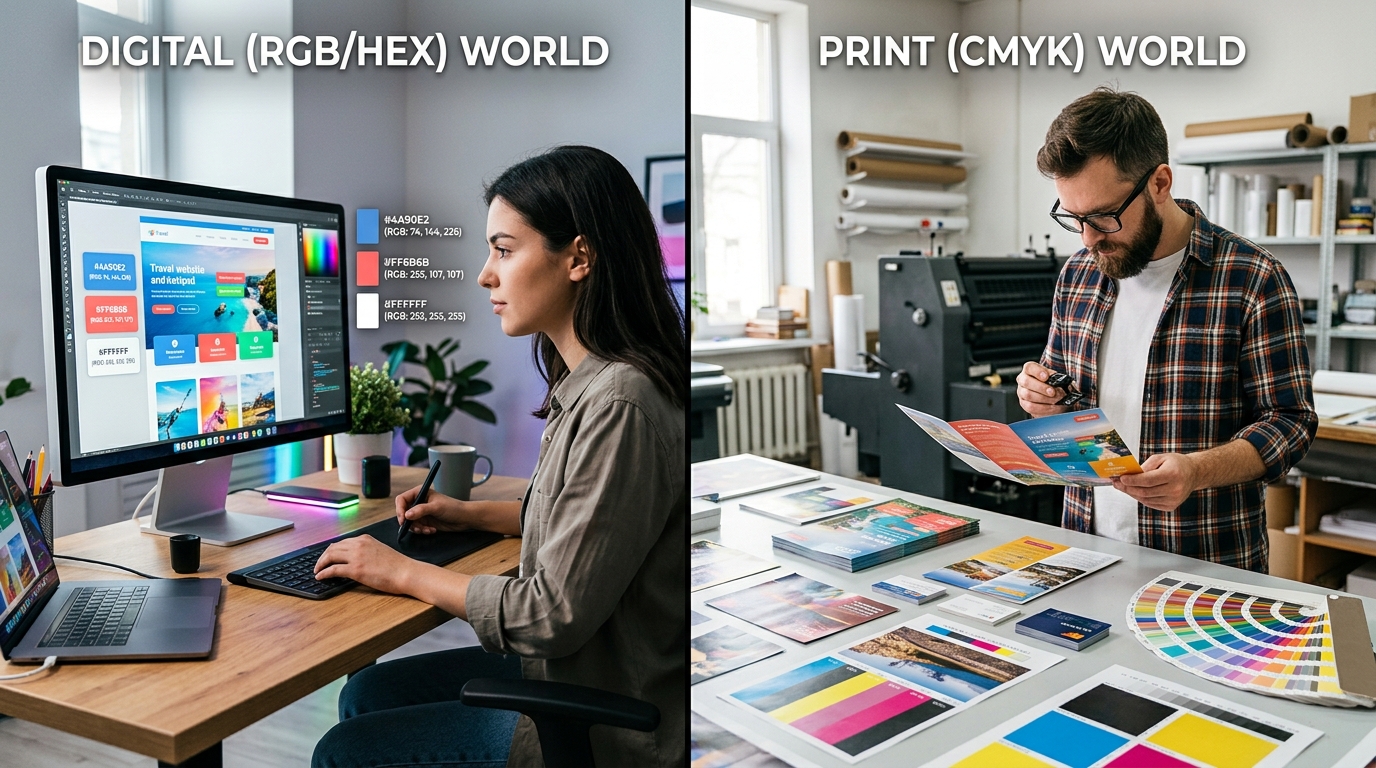
Color is one of the most powerful tools in a designer's arsenal. It communicates mood, reinforces brand identity, guides user attention, and can make or break a visual experience. But here is the reality every designer and developer learns early on: not all tools speak the same color language.
A web browser understands HEX and RGB. A graphic design program might work in CMYK. CSS animations often rely on HSL. Video editing software thinks in HSV. This fragmentation means that if you work across platforms, formats, or mediums, you are going to spend a non-trivial amount of time converting color values from one format to another.
That is where the OKemall Color Converter comes in.
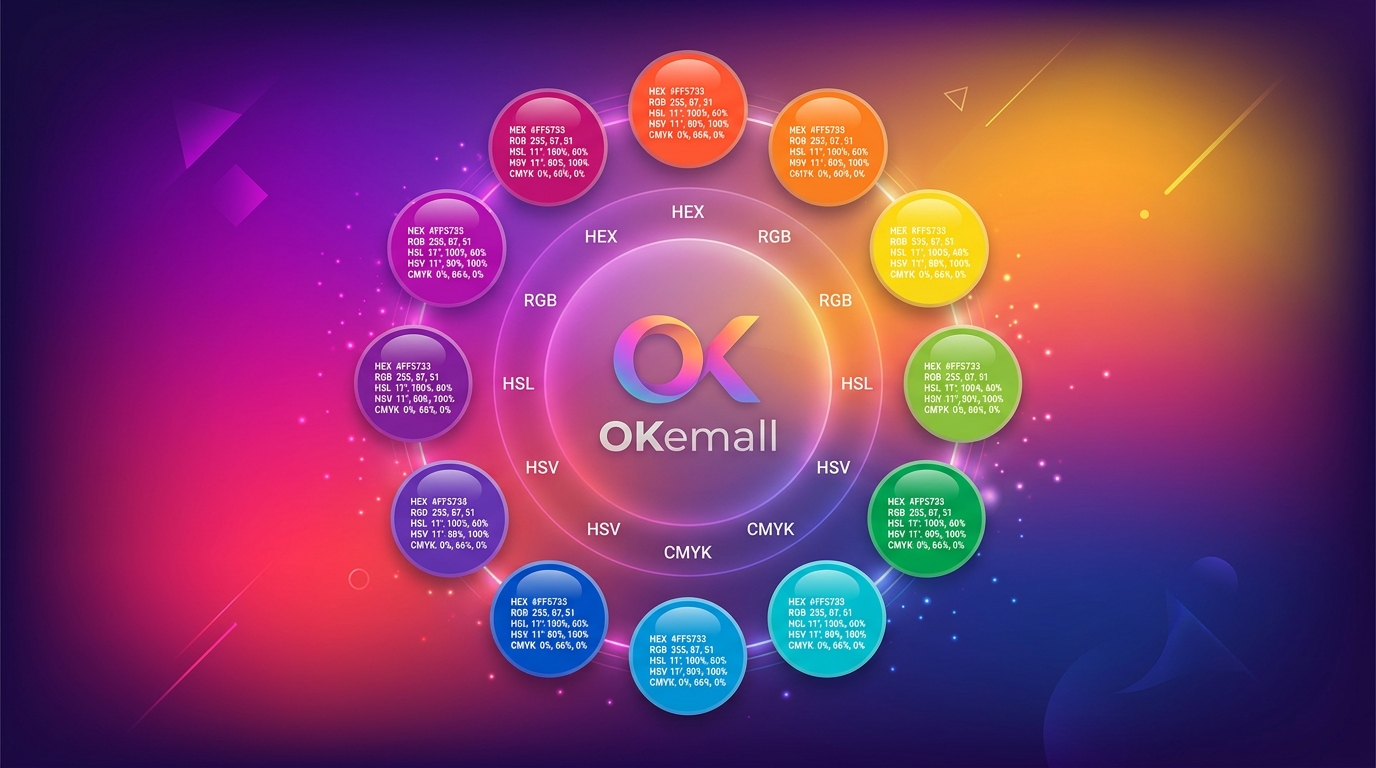
This free online tool lets you convert between HEX, RGB, HSL, HSV, and CMYK in seconds — no signup, no software installation, and no clutter. In this guide, we will walk through everything you need to know about color format conversion, how each format works, when to use which one, and how to make the OKemall Color Converter a seamless part of your daily workflow.
Why You Need a Reliable Color Converter
If you have ever built a website, designed a logo, edited a video, or prepared a file for print, you have run into the color format problem. Here are a few real-world situations where a color converter becomes indispensable:
- Web development: You received a brand guideline document that lists the primary color as
rgb(25, 118, 210), but your CSS framework expects HEX values like#1976D2. You need to convert quickly and accurately. - Print design: Your client approved a digital mockup in RGB, but the printer requires CMYK values. Converting without the right tool can result in washed-out colors.
- CSS animations: HSL is often the most intuitive format for creating smooth color transitions in CSS, but you only have the HEX value of your brand colors.
- Cross-tool compatibility: You are moving assets between Figma, Photoshop, After Effects, and your code editor — each of which defaults to a different color format.
- Accessibility checks: You need to calculate the relative luminance or contrast ratio between two colors, and the tool you are using only accepts RGB input.
In each of these cases, manually calculating the conversion is error-prone and slow. An online color converter solves this by doing the math instantly and giving you copy-ready results.
Understanding the Five Color Formats
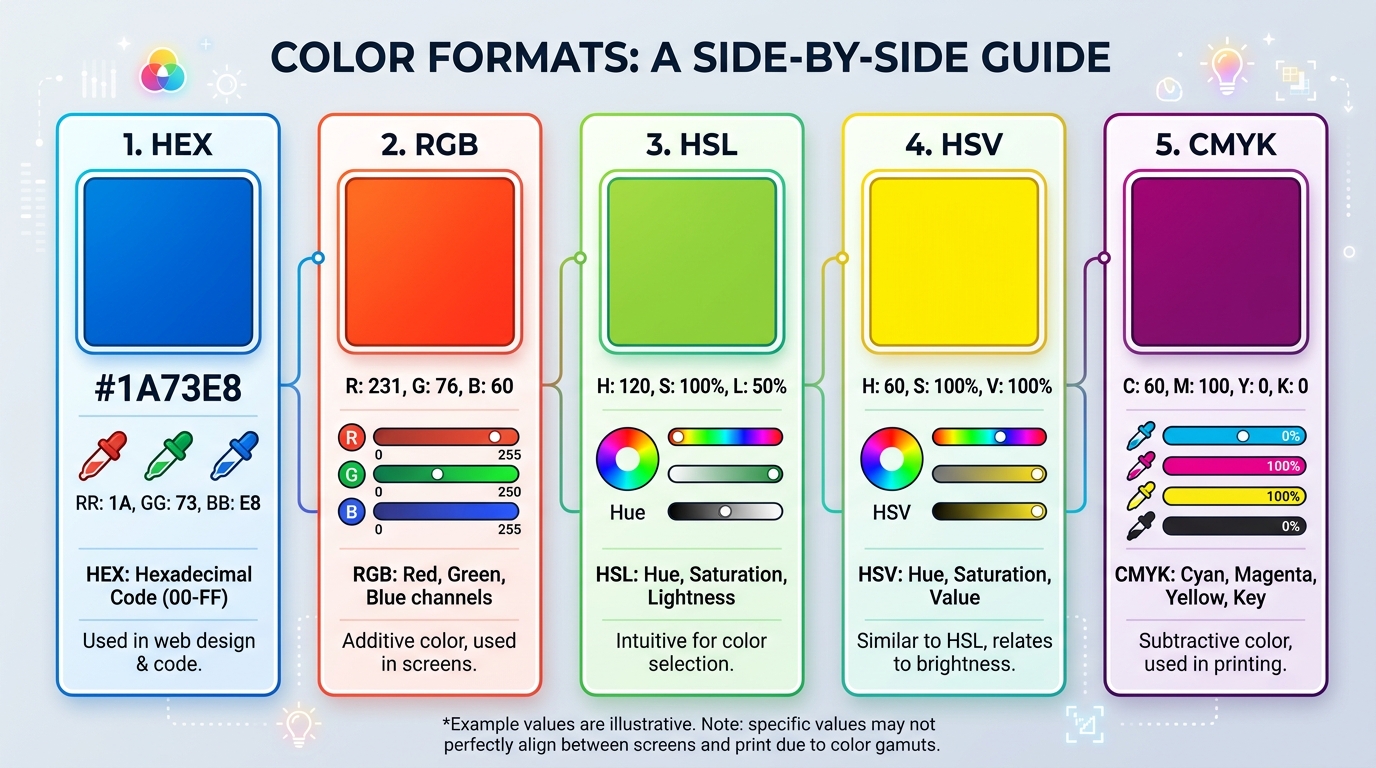
Before diving into the tool itself, it helps to understand what each format represents and where it is commonly used.
1. HEX (Hexadecimal)
HEX is the most widely recognized color format on the web. It represents colors as a six-character string preceded by a hash symbol — for example, #FF5733. The six characters are actually three pairs of hexadecimal numbers (00 to FF), corresponding to the Red, Green, and Blue channels. #FF5733 means Red = FF (255), Green = 57 (87), Blue = 33 (51).
HEX is compact, easy to copy-paste, and universally supported in HTML and CSS. It is the default format in most design handoff tools and color pickers.
Common use cases: Web design, CSS, HTML, UI component libraries, brand style guides.
2. RGB (Red, Green, Blue)
RGB describes a color by specifying the intensity of its Red, Green, and Blue components on a scale from 0 to 255. An RGB value looks like rgb(255, 87, 51). RGBA extends this by adding an Alpha channel for opacity, like rgba(255, 87, 51, 0.8).
RGB is an additive color model — meaning you start with black and add light. It is the native color space of digital screens, cameras, and scanners. When you see a color on a monitor, it is being rendered as a combination of red, green, and blue subpixels.
Common use cases: Web development, digital photography, video editing, screen-based UI design.
3. HSL (Hue, Saturation, Lightness)
HSL represents a color using three intuitive dimensions:
- Hue: The actual color, expressed as an angle on a color wheel (0° to 360°). 0° is red, 120° is green, 240° is blue.
- Saturation: The intensity or purity of the color (0% to 100%). 0% is gray, 100% is fully vivid.
- Lightness: How light or dark the color is (0% to 100%). 0% is black, 100% is white, 50% is the pure color.
An HSL value looks like hsl(9, 80%, 60%). HSL is particularly loved by CSS developers because it makes it trivially easy to create color variations — you can lighten or darken a color simply by adjusting the Lightness value, or create a monochromatic palette by varying the Saturation.
Common use cases: CSS theming, design systems, accessible color palettes, programmatic color generation.
4. HSV (Hue, Saturation, Value)
HSV is similar to HSL but replaces "Lightness" with "Value" (also called Brightness). The key difference: in HSL, pure white is 100% Lightness; in HSV, 100% Value means the brightest possible version of that hue, and white only occurs when Saturation drops to 0%.
HSV more closely mimics how humans perceive and mix paint colors, which makes it the preferred format in many digital art and color picker interfaces — including Photoshop's color picker, GIMP, and most video editing software.
Common use cases: Digital art, image editing, video color grading, game development.
5. CMYK (Cyan, Magenta, Yellow, Key/Black)
CMYK is the standard color model for print. Unlike RGB (additive color), CMYK is subtractive — you start with white paper and subtract light by adding ink. A CMYK value looks like cmyk(80%, 66%, 0%, 20%).
The four channels represent the percentage of Cyan, Magenta, Yellow, and Black ink applied. Because CMYK has a narrower color gamut than RGB, some vivid screen colors cannot be perfectly reproduced in print — a phenomenon called "gamut clipping." A good color converter helps you preview how an RGB color will translate to CMYK so you can adjust before sending files to the printer.
Common use cases: Print design, packaging, brochures, business cards, large-format printing.
When to Use Which Format
| Scenario | Recommended Format |
|---|---|
| Writing CSS for a website | HEX or RGB |
| Building a design system with color variations | HSL |
| Preparing files for a commercial printer | CMYK |
| Editing photos in Photoshop or GIMP | HSV or RGB |
| Sharing a color code with a developer | HEX |
| Creating CSS hover/focus states | HSL (adjust Lightness) |
| Designing business cards or flyers | CMYK |
| Working in After Effects or DaVinci Resolve | HSV |
| Accessibility contrast checking | RGB |
| Brand color documentation | HEX (primary), with RGB and CMYK variants |
How to Use the OKemall Color Converter: Step-by-Step
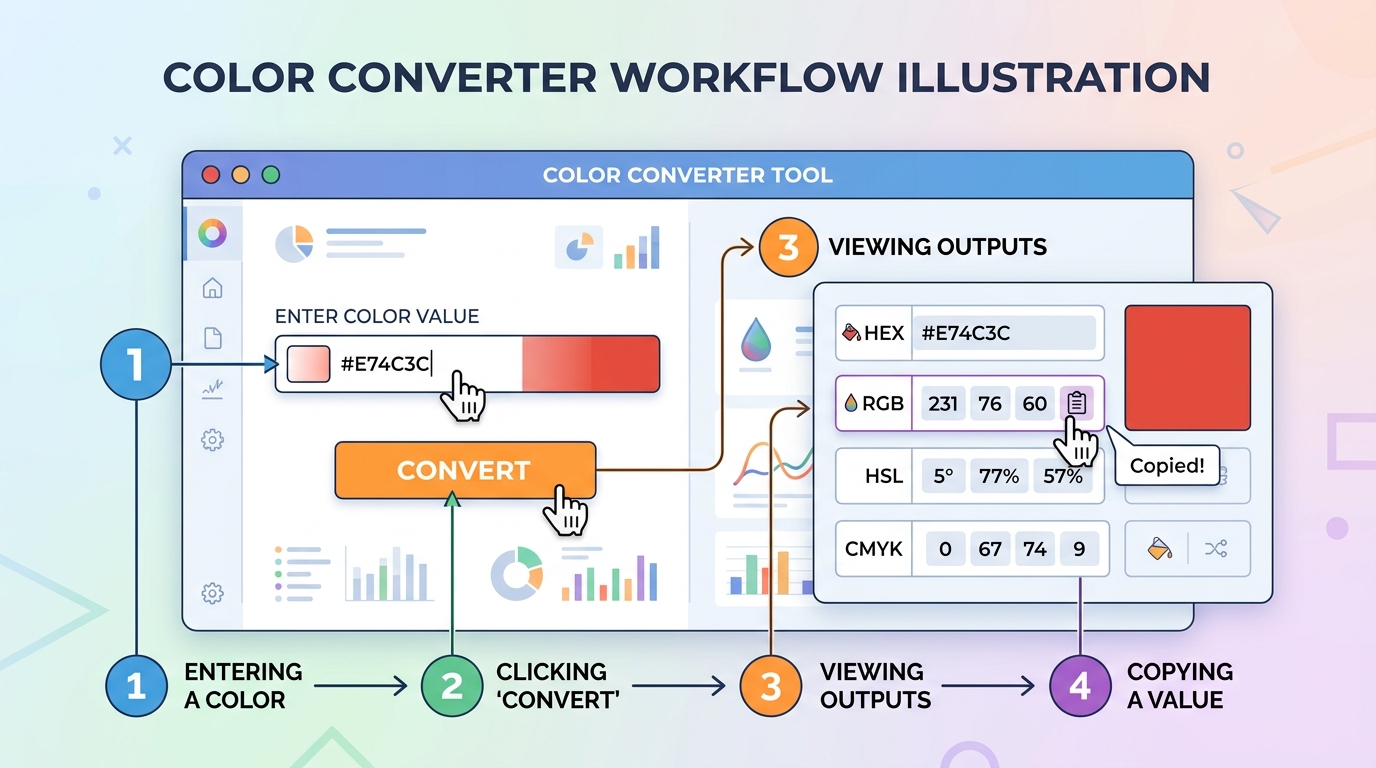
The OKemall Color Converter is designed to be as frictionless as possible. Here is the complete workflow:
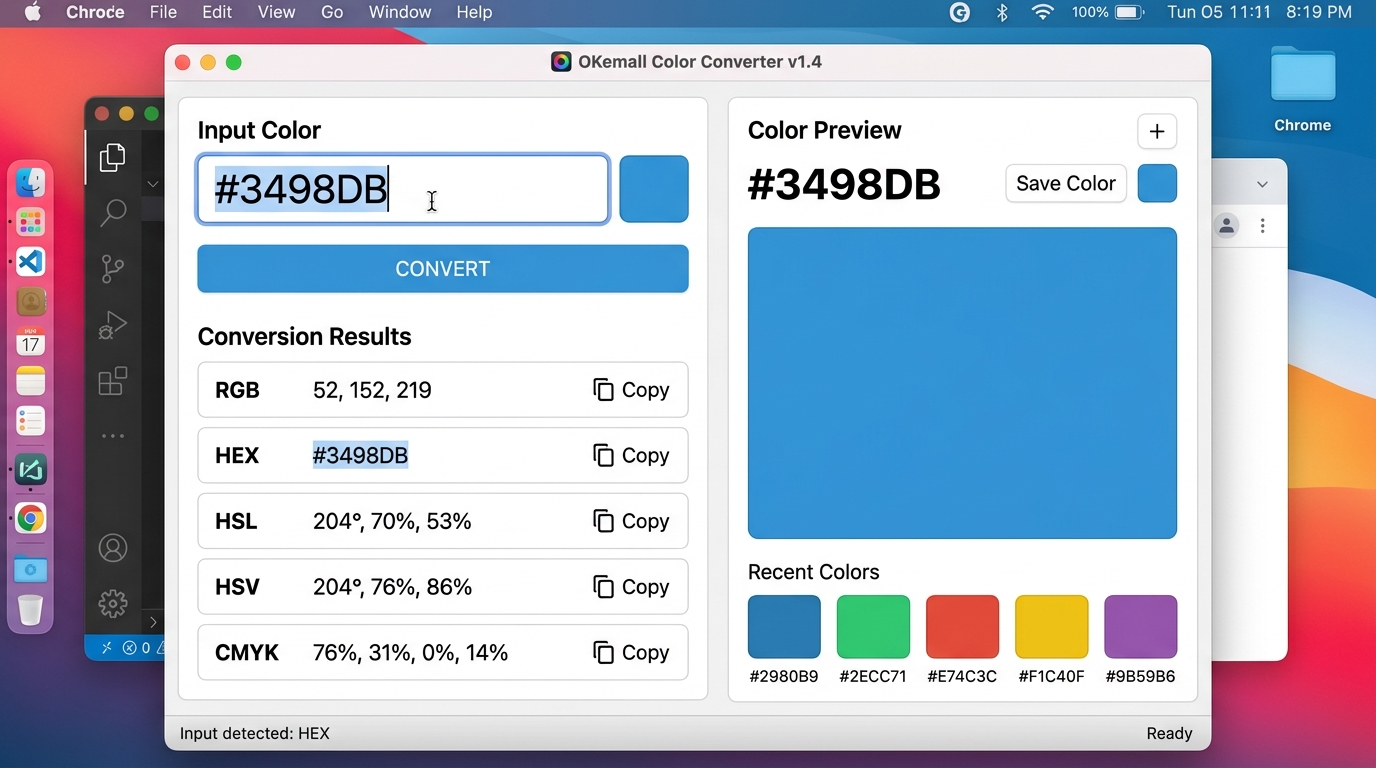
Step 1: Enter your color. Type or paste any color value into the input field at the top. The tool accepts multiple input formats — you can paste a HEX code like #4CAF50, an RGB string like rgb(76, 175, 80), or even an HSL value like hsl(122, 39%, 49%). There is also a convenient paste button (clipboard icon) to grab a color directly from your clipboard.
Step 2: Click "Convert." Press the green Convert button and the tool will instantly compute the equivalent values in all five supported formats: RGB, HEX, HSL, HSV, and CMYK. Results appear in neatly organized rows, each labeled with the format name on the left.
Step 3: Preview the color. The preview panel on the right side of the tool updates in real time, showing you exactly what the color looks like. This is particularly useful for verifying that the conversion produced the shade you expect — a color can look quite different between HEX and CMYK, and seeing it visually eliminates guesswork.
Step 4: Copy your result. Each output row has a dedicated copy button. Click the clipboard icon next to any format, and the value is copied to your clipboard instantly — no need to manually select and highlight the text. Paste it directly into your CSS file, design tool, or print specification sheet.
Step 5 (optional): Try the Sample button. Not sure where to start? Click "Sample" to load a random color and see how the conversion works across all formats. It is a great way to explore the tool's capabilities and discover interesting color combinations.
Step 6 (optional): Reset. Click "Reset" to clear all fields and start fresh with a new color.
What Makes OKemall's Color Converter Stand Out
There are dozens of color converter tools on the internet. Here is what sets the OKemall Color Converter apart:
All five formats in one place. Many converters only handle HEX ↔ RGB, or RGB ↔ CMYK. OKemall covers all five major formats simultaneously — one input gives you all five outputs with zero extra clicks.
Instant clipboard access. The persistent paste and copy buttons on every row mean you never have to select text manually. This saves a surprising amount of time when you are converting multiple colors in a session.
Live color preview. The preview panel updates the moment you convert, showing you the actual rendered color. This is especially valuable when converting to or from CMYK, where the visual output can differ noticeably from on-screen RGB expectations.
No registration required. You can open the page and start converting immediately. No accounts, no email verification, no paywalls — just the tool, ready to work.
Clean, ad-light interface. The tool is surrounded by relevant content and related tool links, but the converter itself is cleanly laid out and free of intrusive elements that break your focus.
Mobile-friendly design. The responsive layout works well on phones and tablets, which means you can convert a color while reviewing a printed proof at a print shop or checking a color code during a client meeting on your phone.
Multi-language support. The OKemall platform supports 10 languages (English, Arabic, German, Spanish, French, Italian, Portuguese, Russian, Turkish, Vietnamese), making the tool accessible to a global audience.
The Math Behind Color Conversion (Briefly)
You do not need to understand the math to use the tool — that is the entire point. But for the curious, here is a quick look at what happens under the hood:
HEX to RGB is straightforward: split the six-character HEX string into three two-character pairs, and convert each pair from base-16 to base-10. #4CAF50 → Red=4C (76), Green=AF (175), Blue=50 (80) → rgb(76, 175, 80).
RGB to HSL involves normalizing the RGB values to a 0–1 range, finding the maximum and minimum values, calculating Lightness as the average of max and min, computing Saturation based on the difference between max and min, and deriving Hue from which channel is dominant.
RGB to CMYK uses the formula: K = 1 − max(R', G', B'), C = (1 − R' − K) / (1 − K), M = (1 − G' − K) / (1 − K), Y = (1 − B' − K) / (1 − K), where R', G', B' are the normalized RGB values.
The OKemall tool handles all of this instantly and accurately, so you never need to pull out a calculator.
Pro Tips for Your Color Workflow
1. Build a master color reference file. Convert all your brand colors to all five formats once, and save them in a document. That way, you always have the right format ready regardless of which tool or platform you are working in.
2. Use HSL for design systems. If you are building a component library with hover and active states, convert your HEX brand colors to HSL first. Then create variants by adjusting the Lightness value — hsl(210, 79%, 50%) for the base, hsl(210, 79%, 45%) for hover, hsl(210, 79%, 40%) for active. This is far more maintainable than managing separate HEX values for each state.
3. Always preview CMYK conversions. CMYK has a narrower color gamut than RGB. Bright neon greens, deep blues, and vivid oranges often look duller in print. Use the color preview panel to check the visual output before sending files to a printer. If the color shifts significantly, you may need to adjust your design palette.
4. Keep the tool bookmarked. Add okemall.com/color-converter to your browser bookmarks or your design resource folder. The faster you can reach the tool, the less it interrupts your creative flow.
5. Pair with a color picker extension. Use a browser color picker extension (like ColorZilla or the built-in Chrome DevTools color picker) to grab colors from any website, then paste them directly into the OKemall converter using the paste button.

Related OKemall Tools for Designers and Developers
The Color Converter is part of a larger ecosystem of free tools on OKemall. Here are a few that pair well with color conversion workflows:
- HEX to RGB — Quick, focused converter when you only need HEX → RGB.
- RGB to HEX — The reverse, when you only need RGB → HEX.
- Image Compressor — Optimize images without quality loss — useful alongside color work for web performance.
- Image Converter — Convert images between PNG, JPG, WebP, and other formats.
- Base64 Encode — Encode images to Base64 for inline embedding in CSS and HTML.
Frequently Asked Questions
Q: Is the OKemall Color Converter free to use? Yes. It is completely free, requires no registration, and has no usage limits.
Q: Can I convert multiple colors at once? The tool converts one color at a time across all five formats. For bulk conversion, you can work through your colors sequentially — the copy buttons make it fast.
Q: Does the converter support RGBA (with alpha/opacity)? The tool outputs standard RGB values. For opacity, append the alpha value manually in your code (e.g., rgba(76, 175, 80, 0.5)).
Q: How accurate is the CMYK conversion? The conversion uses standard mathematical formulas. However, CMYK output can vary between printers, paper types, and ink sets. For production-critical print work, always request a physical proof from your printer.
Q: Does the tool work on mobile devices? Yes. The interface is fully responsive and works on smartphones and tablets.
Q: What if I enter an invalid color value? The tool validates your input. If the format is not recognized, the conversion will not produce output — simply correct the input and try again.
Color conversion does not need to be a bottleneck in your creative workflow. Whether you are a front-end developer translating brand colors into CSS, a graphic designer preparing files for print, or a video editor syncing color values across editing software, the OKemall Color Converter gives you accurate, instant conversions across all five major color formats.
No signup. No clutter. No math required. Just paste, convert, copy, and get back to creating.
Bookmark the tool, add it to your design resources, and make color format headaches a thing of the past.
Ready to simplify your color workflow? Try the OKemall Color Converter now — free, fast, and built for creators.

Popular Tools
Recent Posts