 English
 العربية
 Deutsch
 Español
 Français
 Italiano
 Português
 Русский
 Türkçe
 Tiếng Việt

Free Online Case Converter — Convert Text to Sentence Case, Lower Case, Upper Case & Capitalized Case
Introduction
Have you ever pasted a block of text from an email, a PDF, or a chat message, only to realize the entire thing is in the wrong case? Maybe it arrived in ALL CAPS, and you need it in normal sentence case. Or perhaps you wrote a blog headline that needs to be capitalized word by word, and manually retyping feels like a complete waste of time.
Text case formatting is one of those small, invisible details that nobody notices when it is right — and everyone notices when it is wrong. A single misplaced capital letter in a professional document, a website headline stuck in uppercase, or a database full of inconsistent product names can undermine credibility in seconds.
The OKemall Case Converter solves this problem completely. It is a free, instant, web-based tool that converts any text between four essential case formats: sentence case, lower case, upper case, and capitalized case. No signup. No software. No manual retyping. Just paste, click, and copy.
In this guide, we will explore every case format, when to use each one, real-world scenarios where case conversion saves hours of tedious work, and how to make the OKemall Case Converter a permanent part of your toolkit.
Why Manual Case Conversion Is a Productivity Killer
Before online case converters became common, fixing text case meant one of two things: re-typing the entire block of text, or using a word processor's built-in "Change Case" function — which often requires opening a heavy desktop application just to fix a few sentences.
Here is why that approach fails in practice:
- Re-typing introduces errors. When you retype a paragraph to fix its case, you inevitably introduce typos, miss words, or alter punctuation. What started as a formatting fix becomes a proofreading task.
- Desktop tools are overkill. Launching Microsoft Word or Google Docs to capitalize a headline, then copying the result back into your CMS, email client, or code editor, breaks your flow repeatedly.
- Mixed-case sources are common. Data exports from CRMs, databases, and legacy systems often arrive in all-uppercase or all-lowercase. Manually fixing hundreds of entries is not practical.
- Some platforms have no formatting tools. Many web forms, code editors, and CMS text fields offer no built-in case conversion. You are stuck with whatever you type.
A dedicated online case converter removes all of these friction points. It works in the browser tab you are already in, handles any amount of text, and produces consistently correct output in one click.
Where Case Errors Cause Real Problems
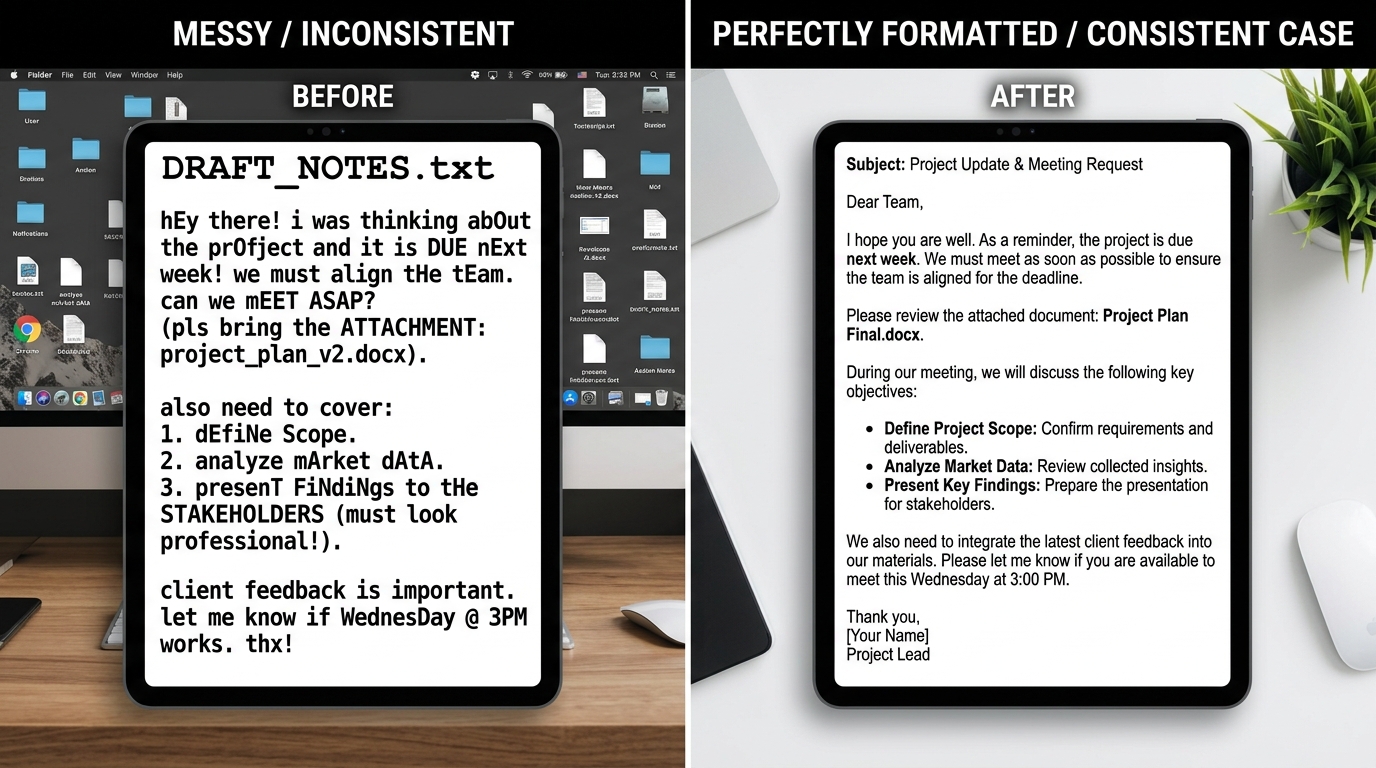
Inconsistent text case is not just an aesthetic issue — it has measurable consequences across different domains:
Professional Emails and Communication. An email sent in all lowercase can look careless. An email sent in all uppercase reads as aggressive. A subject line with inconsistent capitalization (e.g., "Meeting REscheduled for tuesday") projects disorganization. A case converter ensures every message leaves your outbox looking polished.
Content Publishing and SEO. Search engines do not penalize lowercase titles directly, but users do. A blog post titled "how to start a business" versus "How to Start a Business" receives different click-through rates. Social media shares of all-caps headlines look spammy and get scrolled past. Proper capitalization signals professionalism and increases engagement.
Web Development and Coding. Developers frequently deal with text that arrives in the wrong case — API responses, user-generated content, database entries. While CSS has text-transform, it only changes the visual rendering, not the underlying data. For database updates, SEO slugs, and structured content, you need the actual text case to be correct.
E-commerce and Product Catalogs. Imagine a store with 5,000 product names — half in uppercase, half in sentence case. It looks chaotic and reduces buyer confidence. A case converter lets you normalize product titles in bulk, creating a consistent shopping experience.
Academic and Legal Writing. Citations, references, and headings in academic papers follow strict case rules (APA title case, sentence case for MLA, etc.). A case converter that supports sentence case and capitalized case is an essential companion for students and researchers.
Social Media and Branding. Each platform has unwritten formatting norms. LinkedIn posts look best in sentence case. Instagram captions often use casual lowercase. Twitter hashtags require PascalCase for accessibility (e.g., #CaseConverter not #caseconverter). A quick case conversion tool lets you adapt the same message to each platform's expectations.
The Four Conversion Modes Explained
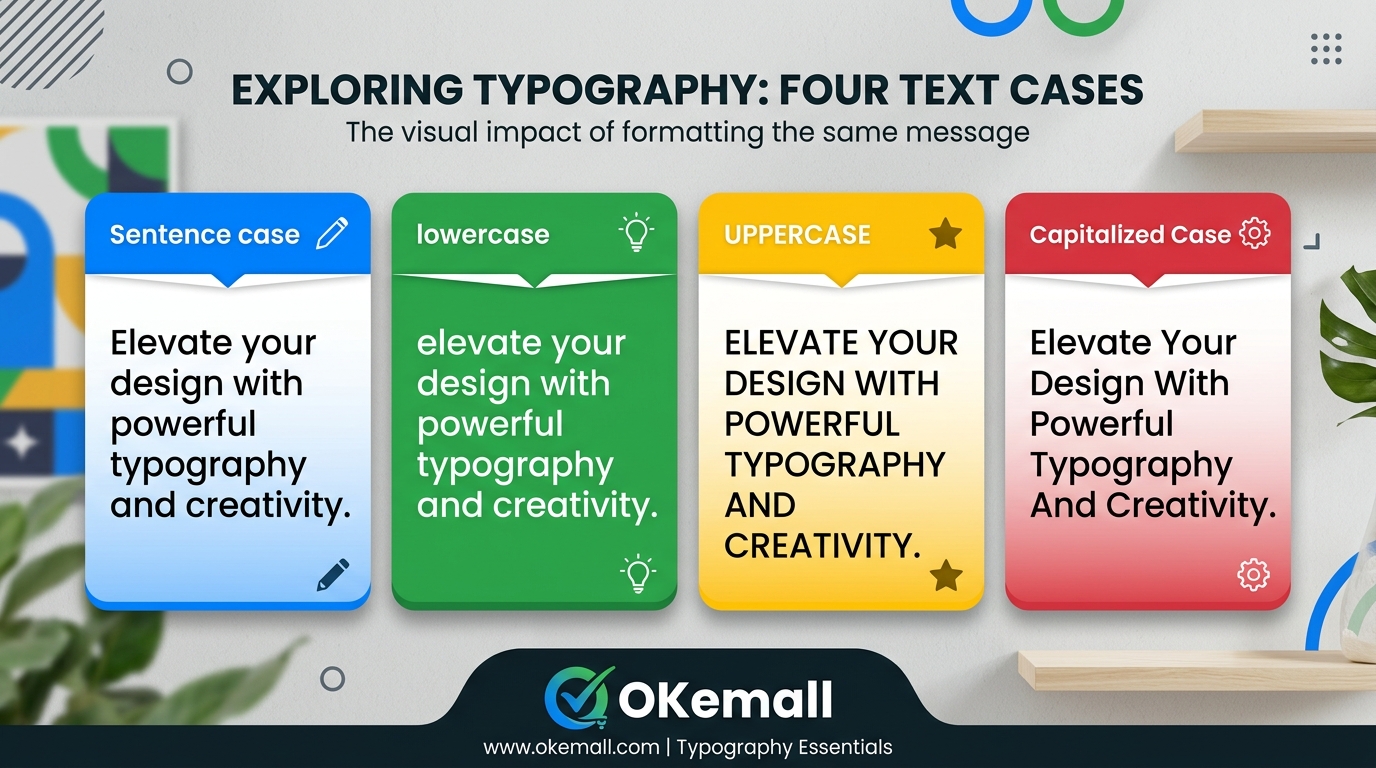
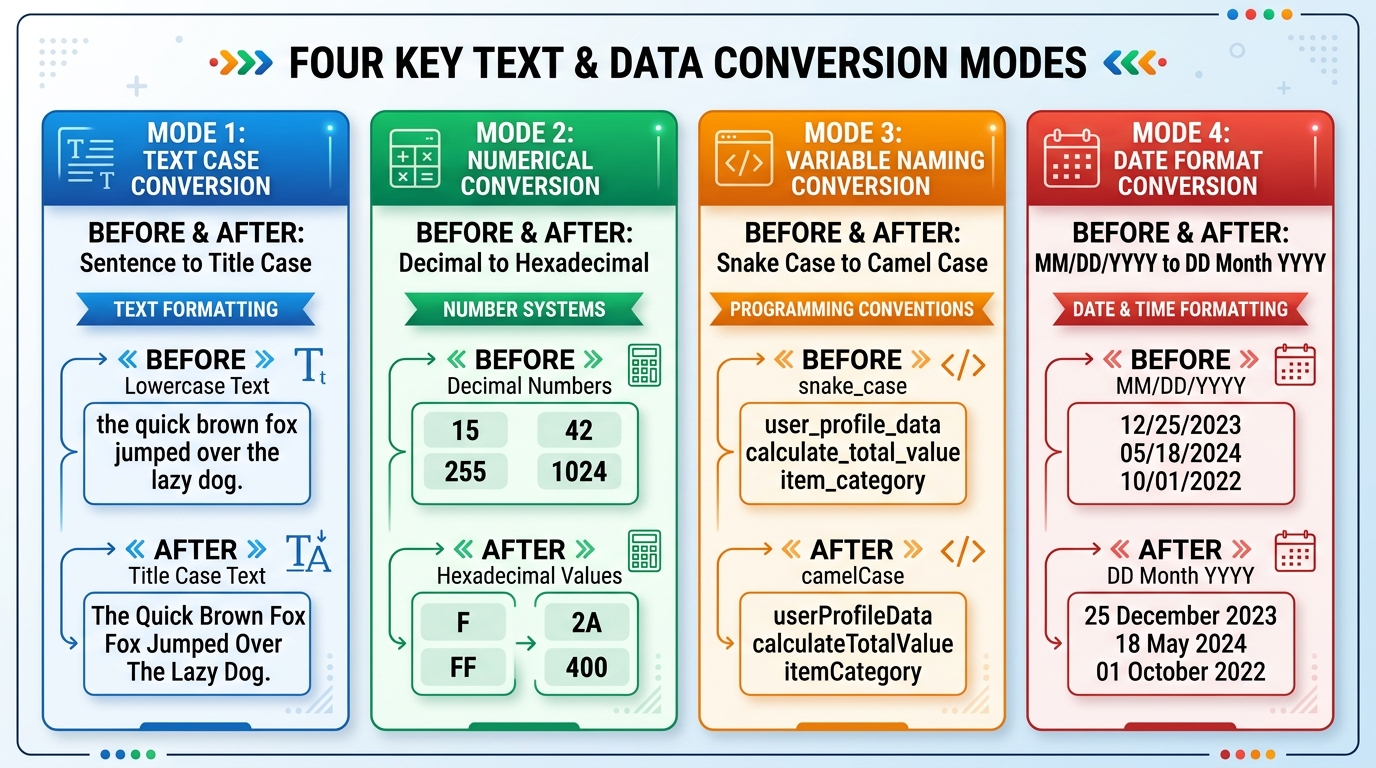
The OKemall Case Converter supports four distinct case transformations, each serving a different purpose. Here is exactly what each one does, with examples:
1. Sentence Case
What it does: Converts the first letter of every sentence to uppercase and makes all other letters lowercase.
Example: "welcome to OKEMALL. we offer FREE TOOLS for EVERYONE." → "Welcome to okemall. We offer free tools for everyone."
Best for: Body text in articles, emails, blog posts, general communication, and any paragraph-level content where only sentence beginnings need capitalization. This is the most common format for readable prose.
2. Lower Case
What it does: Converts every letter in the text to lowercase — no exceptions.
Example: "OKemall Is The Best WebTools Platform" → "okemall is the best webtools platform"
Best for: URLs, email addresses (the local part is typically lowercase), database normalization, CSS class names, programming variables, and any context where uniform lowercase is required. Also useful for stripping accidental CAPS LOCK from a block of text before applying sentence case.
3. Upper Case
What it does: Converts every letter in the text to uppercase.
Example: "please read the safety instructions before proceeding" → "PLEASE READ THE SAFETY INSTRUCTIONS BEFORE PROCEEDING"
Best for: Section headings that need emphasis, legal disclaimers, warning labels, acronym generation, and style-driven design elements (e.g., navigation menus in all-caps). Use sparingly — large blocks of all-caps text are difficult to read and can come across as shouting in digital communication.
4. Capitalized Case (Title Case)
What it does: Converts the first letter of every word to uppercase and all other letters to lowercase.
Example: "the ultimate guide to text case conversion" → "The Ultimate Guide To Text Case Conversion"
Best for: Blog post titles, article headlines, book titles, product names, email subject lines, and any context where each word should be visually distinct. Note that this is a "start case" or "initial caps" conversion — it capitalizes every word, including short words like "a," "an," "the," and "to." This differs from AP-style or APA-style title case, which have specific rules about which words to leave lowercase.
When to Use Each Case Format
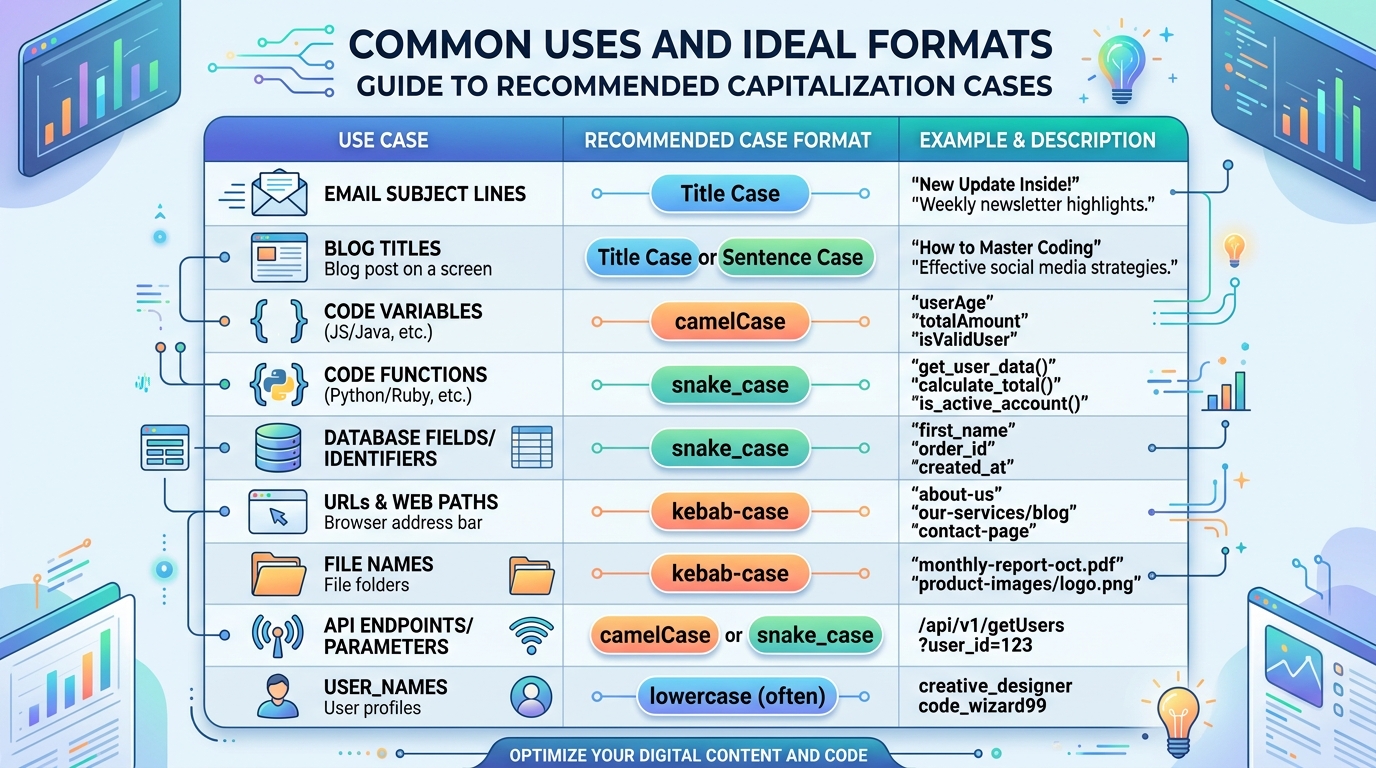
| Context | Recommended Case |
|---|---|
| Article and blog body text | Sentence case |
| Website URLs | Lower case |
| Email addresses | Lower case |
| Blog post titles and headlines | Capitalized case |
| Email subject lines | Capitalized case or Sentence case |
| Database entries and product names | Capitalized case |
| CSS class names and IDs | Lower case (kebab-case) |
| Programming variable names | Lower case (camelCase or snake_case) |
| Navigation menu labels | Upper case or Capitalized case |
| Legal disclaimers and warnings | Upper case |
| Social media captions (casual) | Sentence case or lower case |
| Academic citations (APA) | Sentence case for titles |
| Brand names and trademarks | Capitalized case |
| JSON keys and API parameters | Lower case |
How to Use the OKemall Case Converter: Step-by-Step
Step 1: Enter your text. Type directly into the text area or use the paste button in the top-right corner. The paste button reads directly from your clipboard — no need to use Ctrl+V. If the text area already contains content, the icon changes to a trash icon for clearing.
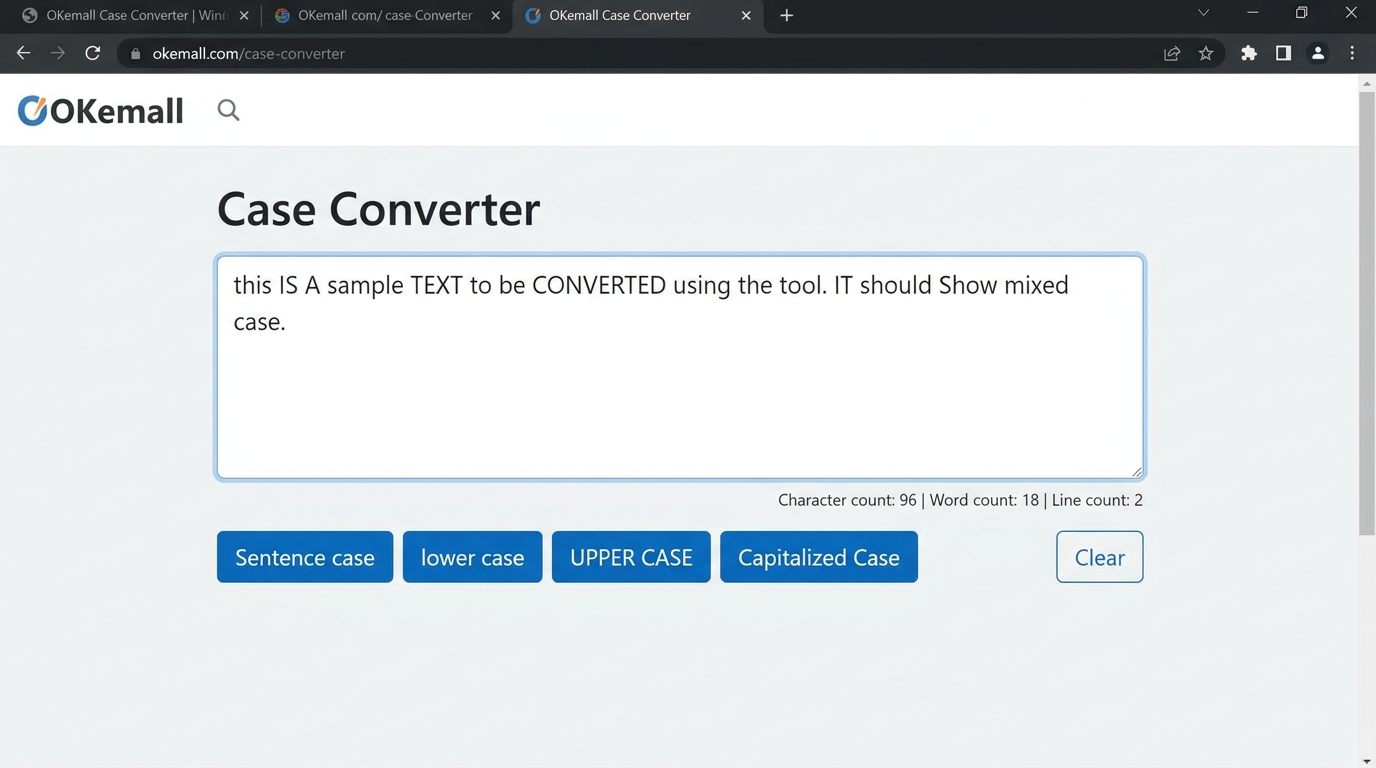
Step 2: Choose your conversion. Click one of the four buttons below the text area:
- Sentence case — Capitalizes the first letter of each sentence.
- lower case — Converts everything to lowercase.
- UPPER CASE — Converts everything to uppercase.
- Capitalized Case — Capitalizes the first letter of every word.
Step 3: Copy the result. The converted text appears in the same text area. Select it (or click inside and press Ctrl+A), copy with Ctrl+C, and paste it wherever you need it — into a document, email, CMS, code editor, or social media post.
Step 4 (optional): Chain conversions. You can apply multiple conversions in sequence. For example, paste ALL-CAPS TEXT, convert to lower case first (to normalize the input), then convert to sentence case for a clean result. This is especially useful when working with text from unpredictable sources like PDFs or OCR output.
What Makes OKemall's Case Converter Different
There is no shortage of case conversion tools available online. Here is what sets the OKemall Case Converter apart:
One-click paste from clipboard. The smart paste button uses the browser's Clipboard API to read your clipboard directly, eliminating the need to position your cursor and press Ctrl+V. When text is already in the text area, the same button becomes a clear button — toggle between paste and clear with zero extra clicks.
No character limits. Convert a single word or an entire document. The tool handles large blocks of text without truncation, making it suitable for bulk content formatting.
Instant server-side processing. Built on Laravel Livewire, the tool processes your text on the server and returns results instantly. There is no page reload, no delay, and no progress spinner that keeps you waiting.
No registration, no ads interruption. Open the page and start converting immediately. There are no signup walls, no email gates, and no paywalls. The interface is clean and focused on the task.
Multi-language support. The OKemall platform is available in 10 languages (English, Arabic, German, Spanish, French, Italian, Portuguese, Russian, Turkish, Vietnamese), making the tool accessible to a global audience.
Mobile-friendly. The responsive layout works on any screen size. You can fix text case from your phone while reviewing an email, editing a social media post, or checking content on the go.
Pro Tips for Getting the Most Out of Case Conversion
1. Normalize first, then convert. When working with text from unreliable sources (OCR output, PDF exports, database dumps), convert to lower case first to strip any random capitalization, then apply your target case format. This two-step approach produces cleaner, more consistent results.
2. Bookmark the tool for quick access. Add okemall.com/case-converter to your browser bookmarks or pin it as a shortcut. The faster you can reach the tool, the less it interrupts your writing flow.
3. Pair with a word counter. After formatting your text, use the OKemall Word Counter to check character and word counts — especially useful when you have platform-specific limits (tweet length, meta description caps, etc.).
4. Understand the limits of capitalized case. The "Capitalized Case" button applies start-case capitalization to every word. This is ideal for titles and headlines that use initial caps style, but it is not a substitute for AP or APA title case (which keep short words like "a," "an," "the," and "in" lowercase). After conversion, quickly scan for any short words that your style guide says should remain lowercase.
5. Use lower case for URL slugs and filenames. Before creating a URL slug or saving a file, convert your text to lower case. This prevents case-sensitivity issues on Linux servers, where My-File.jpg and my-file.jpg are treated as different files.
6. Combine with the Remove Line Breaks tool. Text copied from PDFs often contains unnecessary line breaks. Use the OKemall Remove Line Breaks tool first, then convert the case — this gives you clean, continuous paragraphs in the correct case.
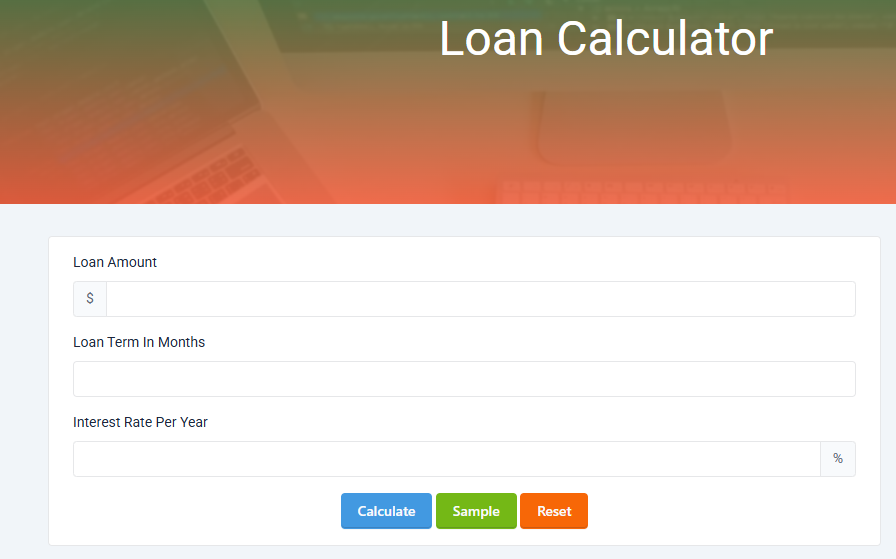
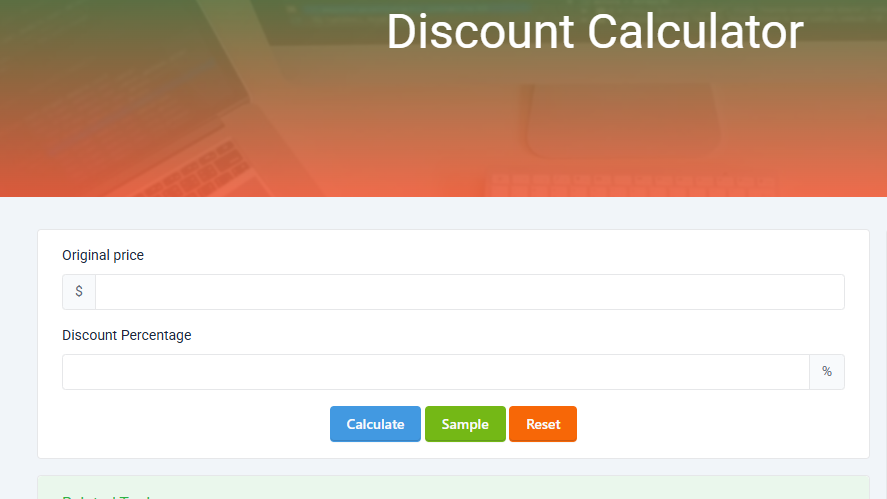
Related OKemall Text Tools
The Case Converter fits into a broader suite of text processing tools on OKemall that complement each other:
- Word Counter — Count words, characters, sentences, and paragraphs in your text.
- Remove Line Breaks — Strip unwanted line breaks from copied PDF or document text.
- Text Sorter — Sort lines alphabetically, numerically, or in reverse order.
- Lorem Ipsum Generator — Generate placeholder text for design mockups and layouts.
- Text Repeater — Repeat text multiple times with custom separators.
- Random Word Generator — Generate random words for brainstorming, naming, and creative exercises.
Frequently Asked Questions
Q: Is the OKemall Case Converter free? Yes, completely free. No registration, no hidden fees, no usage limits.
Q: Can I convert very large blocks of text? Yes. The tool handles large amounts of text without character limits or truncation.
Q: Does the tool support other case formats like camelCase or snake_case? The tool currently supports sentence case, lower case, upper case, and capitalized case. For programming-specific formats like camelCase, kebab-case, or snake_case, you may need a dedicated code formatter.
Q: Is my text stored or visible to anyone else? The tool processes text in real time via Livewire server requests. For sensitive content, consider using a local text editor for case conversion.
Q: Does the tool work on mobile? Yes, the interface is fully responsive and works on smartphones and tablets.
Q: What is the difference between Sentence case and Capitalized case? Sentence case capitalizes only the first letter of each sentence (after periods, question marks, and exclamation marks). Capitalized case capitalizes the first letter of every single word. Use sentence case for paragraphs, capitalized case for titles and headlines.
Text case formatting seems minor — until you are staring at 2,000 words of all-caps text that needs to become readable prose, or a spreadsheet of product names that needs consistent capitalization before a product launch. In those moments, a reliable case converter is not a luxury; it is a necessity.
The OKemall Case Converter eliminates the friction from text case management. It gives you four precise conversions — sentence case, lower case, upper case, and capitalized case — in a clean, no-signup interface that works on any device. There is no learning curve, no character limit, and no barrier between you and correctly formatted text.
Whether you are a writer polishing an article, a developer normalizing database entries, a marketer formatting campaign copy, or a student tidying up a research paper, this tool belongs in your bookmarks. Paste, click, copy — done.
Stop retyping text just to fix its case. Try the OKemall Case Converter now — free, fast, and always available.

.png)